Showing posts with label iOS. Show all posts

Wednesday, July 12, 2017

How To Earn Money While Losing Weight?

Hit two birds with one stone!


While queuing in BPI to make a transaction, I noticed there campaign video for BPI-Philam. They featured an app called Philam Vitality Active App where you can earn rewards while working out. Great way to get (sort of) free stuffs!


Step 1. Download Philam Vitality Active App from Playstore or Apple Store
Step 2. Sign up, Promo Code: bplacwtm
Step 3. Work you butt out. Walk, jog, lift weights and push for that 250 points. Below is how your points calculated.


If you accumulate 250 points for two consecutive weeks, you earn rewards.

For more information, visit:
https://www.philamlife.com/content/dam/ph/en/docs/faqs/philam-vitality-active-faqs.pdf


References:

Sunday, June 17, 2012

How To Upgrade/Update Cydia Themes, Apps and Tweaks (iPod Touch, iPhone, iPad)?


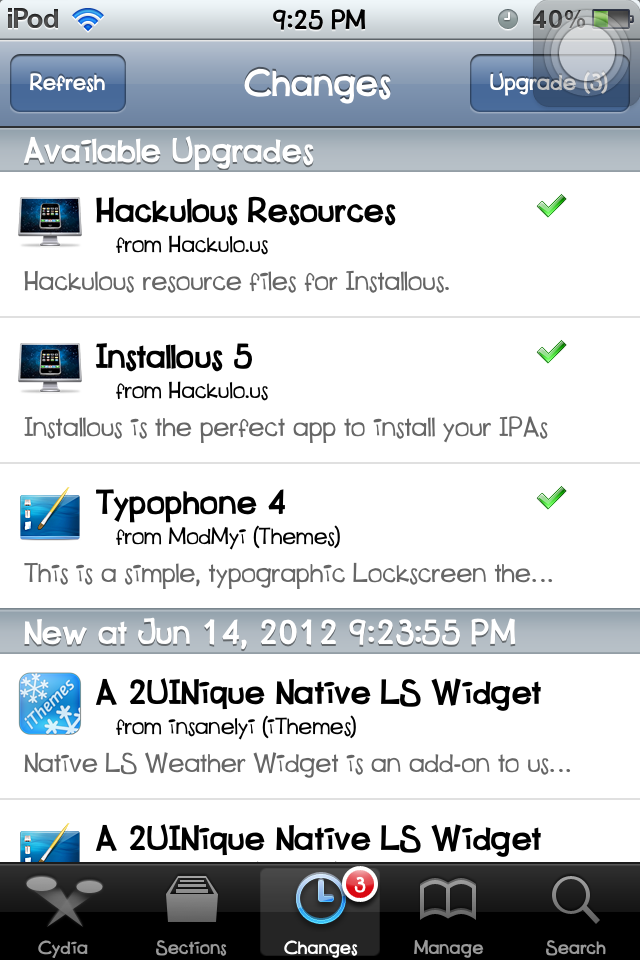
Whenever there is an update of a theme, tweak or app in Cydia, it appears under the Changes option of the screen. Below is the detailed steps on how to update to the latest version of any app, tweaks and themes in Cydia.


Note: Your device must be jailbroken and has Cydia on it.


Step 1. Open Cydia. Wait for the updates to be downloaded (these are seen at the top part of the Cydia screen.)
Step 2. Taps Changes option at the bottom of the screen.
Step 3. You can either select one by one to upgrade or Tap the Upgrade(3) at the top-left of the screen.


Step 4. Wait for the download and upgrade to finish. Tap Return To Cydia.


Your apps, tweaks and themes are already upgraded to their latest versions.


Good luck and enjoy! :)


Related Posts:
List of Cool and Useful Cydia Apps, Themes and Tweaks
See All Typophone Tweaks and Tricks
How To Move the Notifications Below the Date?

How To Move the Notifications Below the Status Bar?

How To Change The Wallpaper  of the Latest Typophone 4?

How To Update To The Latest Typophone 4 Lockscreen Theme?

The latest update of the Typophone 4 lockscreen theme fixes the wallpaper change issue. Below is the detailed steps on how to update to the latest version. This is basically the same steps when upgrading to any other apps/themes/tweaks in Cydia.


Note: Your device must be jailbroken and has Cydia on it.


Step 1. Open Cydia. Wait for the updates to be downloaded (these are seen at the top part of the Cydia screen.)
Step 2. Taps Changes option at the bottom of the screen.
Step 3. Typophone 4 update should be one of the available updates.


Step 4. Tap Typophone 4. Upgrade then Confirm.


Step 5. Wait for the download to finish. Tap Return To Cydia.


You can now see the latest Typophone 4 in your lockscreen containing the instructions on how to change the wallpaper.


Good luck and enjoy! :)


Related Posts:
See All Typophone Tweaks and Tricks
How To Move the Notifications Below the Date?

How To Move the Notifications Below the Status Bar?

How To Change The Wallpaper  of the Latest Typophone 4?

How To Jailbreak iOS 5.1 Semi-Tethered in iPod Touch, iPhone, iPad


Please note: 
This is a semi-tethered jailbreak only. Semi-Tethered means you have to boot your device using redsn0w EVERYTIME you reboot your device. So, if you run out of battery completely and happened to be somewhere away from your computer or you don't have any computer with redsn0w on it, you can't use your device. However, if you can put up with this and just ensure you won't lose your battery or reboot your device, let's proceed with the jailbreak process.


1. Download and install the new iTunes 10.6 on your Windows PC or Mac. Connect your iOS device with your computer, it is highly suggested that you back up your device first.


2. Upgrade your iOS device to the final version of iOS 5.1 using iTunes 10.5 on your computer. Proceed here to see detailed instructions on how to update to iOS 5.1.


3. Download the new redsn0w 0.9.10b6 for Mac here. Click here to download redsn0w 0.9.10b6 for Windows. 


4. Launch redsn0w.


5. Select Jailbreak. You don't have to specify the IPSW file before clicking it.


6. Click Next and follow the onscreen instructions to enter the DFU mode or you can enter DFU mode without clicking next if you already know how to. After putting the device into DFU mode, this screen should appear.


7. Wait for the process to end and this screen should appear. Just leave the checkboxes ticked and then click Next.


8. After the progress bar is finished, the process will take place in your device. A lot of white texts should appear in your device, followed by the running pineapple icon and then finally, the Apple logo.


9. The device will turn on but you are not finish yet you still need to boot tether the device, Cydia should appear in your SpringBoard (What is SpringBoard?). Cydia icon is still white just like below (This is for my case). 


10. Boot the device into a tethered jailbroken state in able to complete the jailbreak process. To do this, launch redsn0w again but instead of clicking Jailbreak, go to Extras and click Just Boot.


11. Wait while the program finishes the process and finally, your device is now jailbroken (tethered).


You can now install cracked apps for free (Click here to learn how to install apps for free) by using installing Installous (Click here to learn how to install Installous in your device) and use different kind of cool tweaks and themes by installing Winterboard. 


Experiencing Error 3194? Click here.


Good luck and Enjoy the latest iOS! :)

Tuesday, May 29, 2012

How To Silent The Charging Sounds When iPod Touch, iPhone, iPad is Plugged In To Power?

This app is used to remove the annoying sound charge sound on your iOS device. You need Winterboard to use this app.

For other Themes, Tweaks and Cydia Apps, PROCEED HERE

Step 1. Open Cydia.


Step 2. Go to the Search option and search for Silent Charge Classic.


Step 3. Select that and tap Install, then Confirm.


Step 4. Wait for the download and installation to finish.


Step 5. Exit Cydia and proceed to Winterboard.


Step 6. Go to Select Themes. Tick Silent Charge Classic.


Step 7. Respring.


You can now plug in your device for charging and you won't hear a charging sound.
Good luck and enjoy! :)

For further questions, just comment below.

For other Themes, Tweaks and Cydia Apps, PROCEED HERE

Thursday, November 24, 2011

How to Change the Color of Pop Up Alerts (iPhone/iPod Touch/iPad)

Ever wanted to change the color of your blue pop up alerts just like the picture below. The pop up alert color on this photo is Aqua. And by installing Pop Up Colors from Cydia, there are many more available colors like Green, Pink, Red, Purple, Black, Orange and Yellow. To learn how to get this tweak, proceed below.,

Note: Your device must be jailbroken and has Cydia on it.


1. Open Cydia.
2. Select Search option at the bottom.
3. Type Pop Up Colors in the Search box.
4. Select Pop Up Colors.
5. Install then Confirm. Wait for it to finish.
6. Open Winterboard. Select Select Themes.
7. Select the color you like.

8. Respring your device. (What is ReSpring?)

Good luck and enjoy! :)

How to Change the Wallpaper of Typophone 4 or Any Other Lockscreen (iPhone/iPod Touch/iPad)

If you want to change the default wallpaper of your themed Lockscreen just like this

Before
After


just proceed to the tutorial below.

What you will need:
1. Jailbroken device with Cydia already on it
2. iDevice Explorer such as iPhoneBrowser or openSSH & Cyberduck
3. Desired new wallpaper

Let's get started,

1. Plug-in you device to the computer.
2. Open iPhoneBrowser or any explorer you have.
3. Navigate to this directory - /private/var/stash/Themes.IJomeN/<name of your theme> In this tutorial we are modifying Typophone 4 so look for the folder named Typophone 4.theme.
5. Go to the folder where you saved your desired new wallpaper. rename its filename to "LockBackground" and make sure it is a PNG file (not JPEG,GIF,BMP,etc). You can always edit its filetype using Adobe Photoshop.
4. Look for the LockBackground.png and then save it first to your computer if ever you want to retrieve it and make it your wallpaper again. Again select LockBackground.png then right-click it, select Replace File.. and replace it with the desired new wallpaper.
5. Respring your device and you should now see that your wallpaper is changed.


Good luck and enjoy!

Monday, October 24, 2011

How to Get Typophone Lockscreen for your Device Using Cydia


Typophone 4 is a lockscreen which offers a sleek design for your usual lockscreen. This is also iOS 5 compatible.


First, you must have Winterboard installed in your device before installing this theme or any other themes for that matter. Click here to learn to install Winterboard.

1. Open Cydia. If you don't have Cydia, you have to jailbreak first your device. Learn here how.
2. Go to the Search option at the bottom. Search for Typophone 4 and then select it.


3. Install > Confirm and wait for it to finish.


4. Select Return to Cydia.


5. Open Winterboard > Select Themes.


6. Check Typophone 4. If it is already checked, leave it like that.


7. Go back to the previous menu by selecting Winterboard at the top part.
8. Select Respring to restart your SpringBoard. (What is ReSpring?)


Enjoy your new Lockscreen! :)


Wednesday, October 19, 2011

How to Find Your Back Ups for iPod Touch, iPhone and iPad

If want to access or copy your previous device back ups, just go to the path below.
Note: This is for Windows only. This directory is specifically for Windows 7. Other Windows users might want to look under other folder names in able to go to the exact directory. However, this is more or less the path.

1. Show hidden folders and files first so that you can navigate to the directory. In able to unhide folders, proceed here.
2. And then proceed to this directory
     C:\Users\<YOUR PC NAME>\AppData\Roaming\Apple Computer\MobileSync\Backup
3. As you can see, there are many folders with a long string of letters and numbers as the folder name. Just look at the date and time the folder was created under its details to know which one is the latest back up.

How to Jailbreak iOS 5 (Tethered) Using RedSnow


Please note: 
This is a tethered jailbreak only. Tethered means you have to boot your device using redsn0w EVERYTIME you reboot your device. So, if you run out of battery completely and happened to be somewhere away from your computer or you don't have any computer with redsn0w on it, you can't use your device. However, if you can put up with this and just ensure you won't lose your battery or reboot your device, let's proceed with the jailbreak process.


1. Download and install the new iTunes 10.5 on your Windows PC or Mac. Connect your iOS device with your computer, it is highly suggested that you back up your device first.


2. Upgrade your iOS device to the final version of iOS 5 using iTunes 10.5 on your computer. Proceed here to see detailed instructions on how to update to iOS 5.


3. Download the new redsn0w 0.9.9b6 for Mac here. Click here to download redsn0w 0.9.9b6 for Windows. 


4. Launch redsn0w.


5. Select Jailbreak and install Cydia. You don't have to specify the IPSW file before clicking it.


6. Click Next and follow the onscreen instructions to enter the DFU mode or you can enter DFU mode without clicking next if you already know how to. After putting the device into DFU mode, this screen should appear.


7. Wait for the process to end and this screen should appear. Just leave the checkboxes ticked and then click Next.


8. After the progress bar is finished, the process will take place in your device. A lot of white texts should appear in your device, followed by the running pineapple icon and then finally, the Apple logo.

9. The device will turn on but you are not finish yet you still need to boot tether the device, Cydia should appear in your SpringBoard (What is SpringBoard?). Cydia icon is still white just like below (This is for my case). 


10. Boot the device into a tethered jailbroken state in able to complete the jailbreak process. To do this, launch redsn0w again but instead of clicking Jailbreak and Install Cydia, go to Extras and click Just Boot.


11. Wait while the program finishes the process and finally, your device is now jailbroken (tethered).


You can now install cracked apps for free (Click here to learn how to install apps for free) by using installing Installous (Click here to learn how to install Installous in your device) and use different kind of cool tweaks and themes by installing Winterboard. 


Experiencing Error 3194? Click here.


Good luck and Enjoy the latest iOS! :)