Showing posts with label respring. Show all posts

Monday, October 8, 2012

How To Control iPhone, iPod Touch Using A PC or Mac?

There are times that you want to view the SpringBoard (What is SpringBoard?) in your PC or Mac, or even control it using your computer.

VNC is an application that helps you achieve that. It allows the user to view the display of the device on the desktop provided VNC is installed in the computer and the device is jailbroken. 

Proceed below for the detailed procedure on how to get VNC and use it.


What you need:
1. VNC installer [download here]
2. Jailbroken device with Cydia on it [How to Jailbreak iOS 5.1]
3. Apple USB Data Cable
3. PC or Mac

Procedure:
1. Download VNC installer that corresponds to your OS. Click the image below to proceed to the download page.

2. On your mobile device, launch Cydia.
3. Go to the Search option. Search for Veency. Install, Confirm and wait.
4. When the download and installation are finished, you can now connect the your mobile device to the computer using the cable.

5. Proceed to the location where you downloaded the installer.

6. Double-click the installer. Enter the IP Address of your device. [ How To Find the IP Address of iPod Touch, iPhone, iPad ]. Enter this IP Address in the field beside "VNC Server:".


7. Click Connect. VNC Viewer will issue a warning if the connection in unencrypted, meaning there is no password for the connection between your device and the computer. 


8. Ignore the warning by clicking Continue.
9. The SringBoard should now appear in the desktop. Control your mobile device using your mouse. Password and other settings can be found under Settings>Veency.


Good luck and enjoy! :)
Comments away! :)

Thursday, August 16, 2012

How To Move The Position of the Notifications In Prestige HD Theme At The Bottom of the Date (iPod Touch, iPhone, iPad) ?


Make your notifications appear right under the status bar! Below are the detailed procedure to do that to your Prestige HD Theme also. 


If you enable your notifications to appear in the Lockscreen, it usually appears right below the date like this below or a little below more.


However, if you want it to appear just below the status bar like that above, just follow the simple steps below.

What you need:
1. Jailbroken device
2. Prestige HD from Cydia (Learn to get Prestige HD here)
3. Browser for your device or OpenSSH and Cyberduck
4. This modified, BarLCD@2x~iphone.png file. Click the transparent image below and then save it to your computer. It is pretty hard to click the image since it is very small, just move around your cursor until it changes.

BarLCD@2x~iphone.png image 320x1 pixel
This image is intended to be transparent


Step 1: Plug in your device.
Step 2: Open your Apple device browser.
Step 3. Navigate to /private/var/stash/Themes.<random code>/Prestige-HD.theme/Bundles/com.apple.TelephonyUI
Step 4. Back-up the contents of the folder by selecting all, right-click then Save As.
Step 5. Delete BarLCD@2x.png. Copy BarLCD@2x~iphone.png to the folder.
Step 6. Respring.

You can already see that the notifications appear right below the status bar.

Good luck and enjoy! For any further questions or if it doesn't work for you right, just put up a comment below. :)

Monday, August 13, 2012

How To Get The Original Default Typophone 4 Blue Drop Background?

Here's the default blue drop on blue background of the old versions of Typophone 4 Lockscreen Theme. Save it to your device and choose it as your lockscreen wallpaper if you might. :)

640 x 960 pixels

Saturday, August 11, 2012

How To Get Prestige HD Weather Time Date for Prestige HD Lockscreen for Free (iPod Touch, iPhone, iPad)?


Prestige HD Weather Date Time is a theme from Cydia that adds the weather, date and time to your Prestige HD theme. 

Below is the screenshot of the Prestige HD Weather-Date-Time Lockscreen.

Note: Your device must be jailbroken and has Cydia and Winterboard (Get Winterboard here) on it to get this theme.


Steps:

1. Launch Cydia. Wait for it to update.

2. Tap Search at the bottom of the screen. Search for "Prestige", then look for Prestige-WeatherTimeDate.


3. Select it, Install then Confirm.

4. Wait for the download and installation to finish and then tap Return to Cydia.

5. Exit Cydia. Launch Winterboard. Notice that there are various added themes in the list besides Prestige-Widget-WTD SB. Make sure that Prestige -Widget-WTD SB  is the one that's ticked. If not, tap it to tick.


6. Tap Winterboard to go back, then ReSpring (What is ReSpring?).

Good luck and enjoy your new theme! ♥
Do make a comment if you encountered any problems.

Sunday, June 17, 2012

How To Upgrade/Update Cydia Themes, Apps and Tweaks (iPod Touch, iPhone, iPad)?


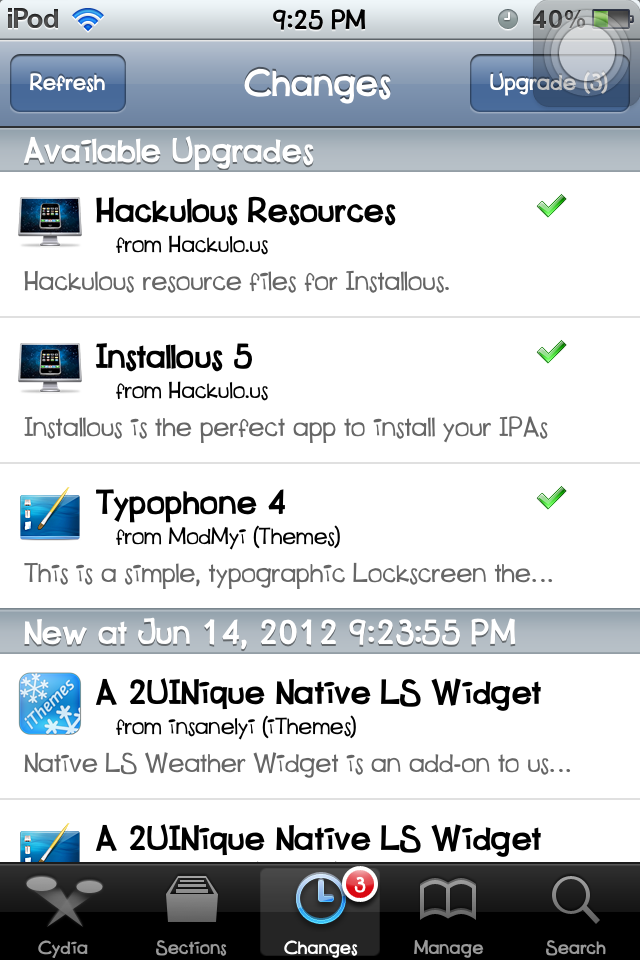
Whenever there is an update of a theme, tweak or app in Cydia, it appears under the Changes option of the screen. Below is the detailed steps on how to update to the latest version of any app, tweaks and themes in Cydia.


Note: Your device must be jailbroken and has Cydia on it.


Step 1. Open Cydia. Wait for the updates to be downloaded (these are seen at the top part of the Cydia screen.)
Step 2. Taps Changes option at the bottom of the screen.
Step 3. You can either select one by one to upgrade or Tap the Upgrade(3) at the top-left of the screen.


Step 4. Wait for the download and upgrade to finish. Tap Return To Cydia.


Your apps, tweaks and themes are already upgraded to their latest versions.


Good luck and enjoy! :)


Related Posts:
List of Cool and Useful Cydia Apps, Themes and Tweaks
See All Typophone Tweaks and Tricks
How To Move the Notifications Below the Date?

How To Move the Notifications Below the Status Bar?

How To Change The Wallpaper  of the Latest Typophone 4?

Tuesday, May 29, 2012

How To Hide Your Springboard Icons Using A Cydia App: Poof (iPod Touch, iPhone, iPad )?

Note: Your device MUST BE JAILBROKEN and HAS CYDIA ON IT.

Poof is an Cydia app that enables the users of the device to hide the icons in the Springboard (What is Springboard?). It somehow makes them invisible, the only way to access them is to search them through the Spotlight Search or unhide them using the same app - Poof. Below are the steps to install Poof.


Step 1. Open Cydia.


Step 2. Go to Search options and search for Poof. It is under BigBoss repository.
Step 3. Select Poof.


Step 4. Install then Confirm.
Step 5. Wait for the download ans installation to finish.


Step 6. After that, you should already see Poof icon in your springboard.


Here's how to hide the icons.

Step 7. Open Poof. Wait for it to enumerate the applications.
Step 8. Toggle to Off to hide icons.


Step 9. Respring(What is Respring?) . If you don't resping, the icons will remain in your springboard (How to Respring?).

Goodluck and enjoy! :)

How To ReSpring (iPod Touch, iPhone, iPad) ?


Respring means that you are refreshing your Springboard. There are multiple ways to respring.
Below are the two ways to respring.


Through Winterboard:
Winterboard should be installed first from Cydia. Click here to learn how to install Winterboard.

Step 1. Open Winterboard.
Step 2. Tap Select Themes.


Step 3. Untick one theme and then tick that theme again.


Step 4. Tap Winterboard.
Step 5. Tap Respring. Wait for the device to respring.


Through ActionBoard:
ActionBoard should be installed first from Cydia.

Step 1. Activate ActionBoard. ActionBoard will be activated when you activate the AppSwitcher which means double tap the Home button.
Step 2. Tap System.


Step 3. Tap Respring. Wait for the device to respring.


Goodluck! For any further questions, just put up a comment below. :)


Thursday, November 24, 2011

How to Change the Color of Pop Up Alerts (iPhone/iPod Touch/iPad)

Ever wanted to change the color of your blue pop up alerts just like the picture below. The pop up alert color on this photo is Aqua. And by installing Pop Up Colors from Cydia, there are many more available colors like Green, Pink, Red, Purple, Black, Orange and Yellow. To learn how to get this tweak, proceed below.,

Note: Your device must be jailbroken and has Cydia on it.


1. Open Cydia.
2. Select Search option at the bottom.
3. Type Pop Up Colors in the Search box.
4. Select Pop Up Colors.
5. Install then Confirm. Wait for it to finish.
6. Open Winterboard. Select Select Themes.
7. Select the color you like.

8. Respring your device. (What is ReSpring?)

Good luck and enjoy! :)

How to Change the Wallpaper of Typophone 4 or Any Other Lockscreen (iPhone/iPod Touch/iPad)

If you want to change the default wallpaper of your themed Lockscreen just like this

Before
After


just proceed to the tutorial below.

What you will need:
1. Jailbroken device with Cydia already on it
2. iDevice Explorer such as iPhoneBrowser or openSSH & Cyberduck
3. Desired new wallpaper

Let's get started,

1. Plug-in you device to the computer.
2. Open iPhoneBrowser or any explorer you have.
3. Navigate to this directory - /private/var/stash/Themes.IJomeN/<name of your theme> In this tutorial we are modifying Typophone 4 so look for the folder named Typophone 4.theme.
5. Go to the folder where you saved your desired new wallpaper. rename its filename to "LockBackground" and make sure it is a PNG file (not JPEG,GIF,BMP,etc). You can always edit its filetype using Adobe Photoshop.
4. Look for the LockBackground.png and then save it first to your computer if ever you want to retrieve it and make it your wallpaper again. Again select LockBackground.png then right-click it, select Replace File.. and replace it with the desired new wallpaper.
5. Respring your device and you should now see that your wallpaper is changed.


Good luck and enjoy!

Wednesday, November 23, 2011

How to Remove Typophone 4 Lockscreen on iPod Touch/iPhone/iPad Using Cydia (Upgrade to Latest Version)

There is already a release of the latest version of the Typophone 4 theme which removes the Lockscreen and set the Notifications below the time. You just have to install the latest version from Cydia or upgrade the Typophone 4.

Notifications appear right below the time


Note: Your device must be jailbroken and has Cydia on it.

To install Typophone 4, proceed to this tutorial. To upgrade, here's how:

1. Open Cydia.
2. Select Changes option at the bottom.
3. Select Typophone 4.
4. Select Modify > Upgrade.
5. Wait for it to finish then respring. After that, you can now see your lockscreen without the default lockscreen clock.


Good luck and enjoy! :)

Monday, November 21, 2011

How to Remove Lockscreen Clock in iOS 5 (iPod/iPhone)

For the previous iOS, Lockscreen Clock Hide from Cydia simply solves the problem of getting rid of the Clock in the Lockscreen whenever you want to fully experience the beauty of your new Lockscreen Theme. However, the Lockscreen Clock Hide when installed on devices running iOS 5, it just doesn't work because the SpringBoard is put into Safe Mode. To solve this problem, I have learned through forums of a way to get rid of the Lockscreen Clock.


Note: This tutorial is a bit long but fairly easy. I just wrote them in details so that it would be clearer.

Before
After

First, here are the things you need:

1. Modified Lock Clock.ttf and BarLCD@2x~iphone.png to hide the Lockscreen Clock. Download Here and then unzip.
2. plist file editor. You will need this to edit the file. plist file that will be shown later. Download a plist editor here for Windows or search for one in the web. I recommend for iPodRobot plist editor.
3. iDevice explorer like iPhoneBrowser. Just search for it or download here.

Let's proceed in removing the Lockscreen Clock now:

1. Connect your device to your computer.
2. Open iPhoneBrowser or any other explorer you have. Navigate to this directory: /var/mobile/Library/Caches
3. Look for DateFormats.plist. Right-click this file and click Save As. Save it to a location in your computer where you can easily retrieve it.
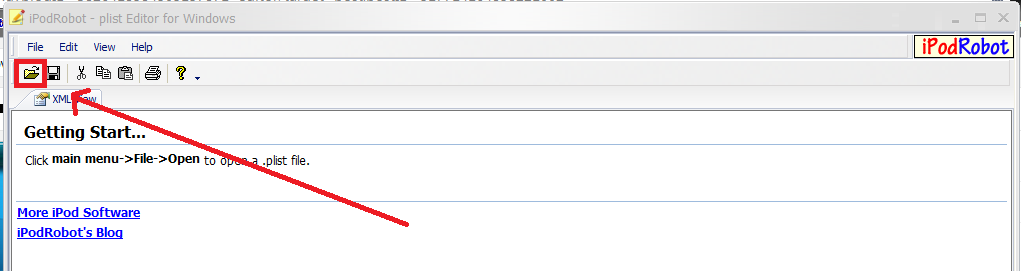
4. Here is where you need the plist editor. Open the plist editor. Select Open File Icon and look for the DateFormats.plist in your computer then open.

iPodRobot plist editor

5. Look for this line which you can find at the bottom part of the file


     and delete EEEE d MMMM but leave a space.


6. Save the changes.
7. Go to iPhoneBrowser again, right-click DateFormats.plist and select Replace File..
8. Replace it with the one you saved and modified in your computer.
9. Using iPhoneBrowser again, proceed to this directory: /System/Library/Fonts/Cache/
10. Look for LockClock.ttf. Replace it with the one you downloaded from the link provided above.
11. After that, navigate to this directory: /System/Library/PrivateFrameworks/Telephony.UIFrameworks/
12. Look for BarLCD@2x~iphone.png and again replace it with the one from the link above. Note: If you prefer that the notifications are right below the Status Bar, replace BarLCD@2x~iphone.png with the one from this link instead from the one from the link above.
13. Respring your device.

Let me know if there are problems.
Good luck and Enjoy! :)