Showing posts with label Apple. Show all posts

Saturday, August 3, 2013

How To Download Plants Vs. Zombies 2 For Free?

A sequel to your addicting game is now available: Plants vs. Zombies 2!
It is not available in iTunes AppStore, but your device is in jailbreak state, luckily, you got to have it... For free! 

Needed:
1. Jailbroken device
2. AppCake or any cracked app downloader is installed

So here's how:

1. Launch AppCake and search for Plants vs Zombies 2

2. Select the game. 

3. Tap Download

4. Select one of the file sharing sites, then follow the instruction to download. A notification will pop up telling you that the download has started.

5. It will now appear on the Downloading Tab. 

6. Wait for it to finish. Proceed to Downloaded tab and tap the app and select Install.

7. You should see the app on your device already after installation.

Good luck and enjoy!
Please comment for questions :)

Wednesday, March 20, 2013

How To Set Up New iPod Touch, iPhone, iPad in iOS6?


This tutorial is suitable for new Apple users or if you have just updated to iOS 5 because frequent Apple users are most likely used to setting up their devices, I presume? :)
Since iOS 5, you can now set up your device even without iTunes. To do this, you just need a charged device and ideally an internet connection for configuring other stuffs like Apple ID.

Please follow the procedure below to set up.

Note: The device I used is iPod Touch 5 but the procedure below is almost for all Apple devices.


1. Power on your device by pressing the button located on the top of the device.

2. Unlock the device by sliding the arrow icon to the right.
3.  Select you Language, and your Country.


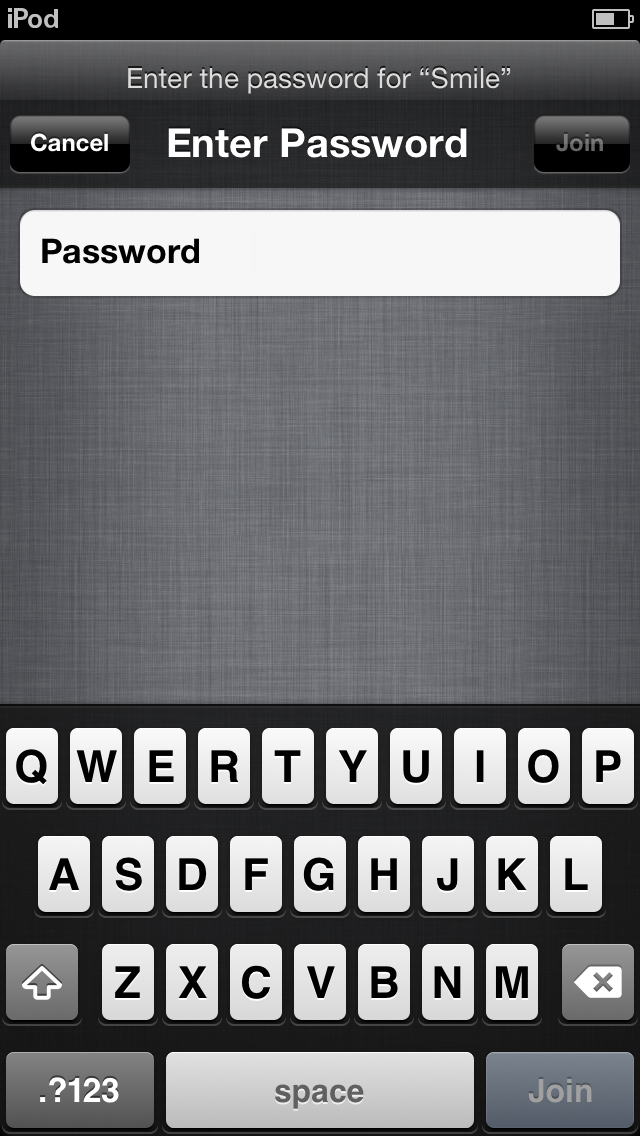
4. Choose your connection and enter your password.


 5. Enable/Disable Location Services if you want your location to be determined.

6.  Set up a new iPod Touch or Restore from an existing back-up.
 7. Enter your Apple ID if you have an existing one, Sign up for a new Apple ID or jsut skip this step.


 8. Agree to the Terms and Conditions to continue.


 9.  Set up other settings such as iCloud, Find my iPod (I recommend this one), and Diagnostics.


10. Register your device.


11. Finally, Start using your device! :)


Monday, January 7, 2013

How To Sign Up An Apple ID With Free Option as Payment Method Using Your Device?


Note: Make sure you still don't have an existing Apple ID.

1. Launch AppStore in iTunes.
2. Select one FREE app.
3. Select Install.
4. A form will appear telling you that you don't have an existing Apple ID, proceed to signing up.
5. In the Payment Methods, along with the credit card options, there should be a free (None) option. Select that and continue.
6. You now have an Apple ID with free as payment method.

Goodluck and enjoy! :)

Tuesday, October 23, 2012

How To Update A Third Party / Cracked App Using Installous from your Computer? (iPod Touch, iPhone)

Installous is an app from Cydia that lets you download, update and install cracked apps. However, when updating in iOS, it doesn't necessarily "update" the app by just downloading the needed updated parts but you must download the whole updated app and install it again. The app data such as stats, usernames, and content will remain though. Thus, for larger sized apps like Asphalt and Infinity Blade II, it might take a lot more time and more battery to download using your device.

As an alternative, you could download the app using your computer instead for better internet speed, less download time and ease of access. Below are the detailed steps to download using your computer and installing it using Installous later.

What you need:
1. iPhoneBrowser for Windows for accessing hidden file of the device
2. Cyberduck for Mac for accessing hidden file of the device

Procedure:
1. Go to a website called ipad-os.net, there you can find almost all the cracked apps available in the app store, fom games to utilities and also Cydia themes and tweaks.
2. Browse for your desired app. Here are some of the most popular app links.


  • Plants Vs. Zombies
  • Asphalt 7
  • Asphalt 6
  • Infinity Blade II
  • Fruit Ninja
  • Cut The Rope
  • Where's My Water?
  • Momento
  • Spending
  • Pages
  • VLC
  • Temple Run Brave
3. Proceed to the bottom part of the page. Several direct download links are in there. 
4. Select one and follow the instructions, some apps have Magnet link so that you can download the torrent file and download it using uTorrent.

5. Open iPhoneBrowser or Cyberduck (provided, it is already installed).
6. Navigate to this location: var/mobile/Documents/Instalous/Downloads. In there are the apps you downloaded before in ipa format if there were any plus image files which are the app icons.


7. Once the download is finished from ipad-os or from uTorrent, open the file location.


8. Copy the ipa file to iPhoneBrowser or Cyberduck under Downloads folder. It is alright even if there is no corresponding image for the icon.


9. Open Installous in your device. Select Downloads. Notice, there is no icon for the app, that is normal because there is no corresponding image file for that app and it doesn't really matter.


10. Install the app like you would install any other app in Installous. Select the app and tap install.


Goodluck and enjoy! Let me know if you had any problems!
Comment away! :)

Wednesday, September 12, 2012

How To Move The Position of the Notifications In LS Colours Lockscreen At The Bottom of the Weather (iPod Touch, iPhone) ?


LS Colours is a really cool lockscreen theme for your device. It features a minimalist design which includes the time, the date and the weather. However, when plenty of notifications shows up, they cover the look of this elegant theme. Then, best thing to do is move the position of the notifications to make room for the full view of this theme. If you want to change the position of your lockscreen notifications from its original position to just below the weather, proceed to the detailed tutorial below.


What you need:

1. Jailbroken device. Typophone 4 from Cydia
3. Browser for your device or OpenSSH and Cyberduck
4. This modified, BarLCD@2x~iphone.png file. Click the transparent image below and then save it to your computer.

The image is not visible.

Step 1: Plug in your device.
Step 2: Open your Apple device browser.
Step 3. Navigate to /private/var/stash/Themes.<random code>/LS Colours.theme/Bundles/com.apple.TelephonyUI
Step 4. Back-up the contents of the folder by selecting all, right-click then Save As.
Step 5. Add BarLCD@2x~iphone.png with the one you downloaded above.
Step 6. Respring.

You can already see that the notifications appear right below the date. Note that even pop ups will appear on this position. Now, you can appreciate the look and feel of the lockscreen for you can see all of its components even if there are plenty of notifications showing up.

Good luck and enjoy! For any further questions or if it doesn't work for you right. Just put up a comment below. :)

Related Posts:


Monday, August 13, 2012

How To Get The Original Default Typophone 4 Blue Drop Background?

Here's the default blue drop on blue background of the old versions of Typophone 4 Lockscreen Theme. Save it to your device and choose it as your lockscreen wallpaper if you might. :)

640 x 960 pixels

Friday, August 10, 2012

How to get Prestige HD Theme for Free Using Cydia (iPod Touch, iPad, iPhone)?

Prestige HD is a theme from Cydia that features a sleek grayish look and feel for your device's interface. It comes with a cool icon pack, nice lockscreen slider, and unique design for selected apps' interfaces. Below are screenshots of this theme.

Tweaks and other modifications can also be made to this theme to make it look more cool and make it more useful and productive.

Note: Your device must be jailbroken and has Cydia and Winterboard (Get Winterboard here) on it to get this theme.


Screenshots:

Lockscreen

Lockscreen Notifications

Charging

Passcode Interface

iMessage Design

Some of the icons the Prestige HD offers

iCal

Calculator
Steps:

Step 1: Launch Cydia. Wait for it to update. The free Prestige HD Theme is available on the following repositories, enclosed in parentheses is the repo url:
            HackYouriPhone (http://repo.hackyouriphone.org/)
            xSellize(http://cydia.xsellize.com/)
            Insanelyi

If you already have one of these repos or have all of them, skip Step1.1 to Step 1.3.

     Step 1.1: Tap Manage at the bottom, then Sources. 
     Step 1.2: Tap Edit, then Add.
     Step 1.3: Enter the url repo listed above, select Add Anyway when a pop up appears. Wait for the repository to load.

Step 2: Tap Search at the bottom, then search for Prestige HD or go to one of the sources and look for Prestige HD. (I used the one from HackYouriPhone repo since the one from xSellize gives me the Hatch Sum Mismatch Error)


Step 3: Tap Install, then Confirm.


Step 4: Wait for the download and installation to finish.

Step 5: To use the theme, exit Cydia, launch Winterboard.

Step 6: Tap Select Themes, make sure Prestige HD is ticked. If not, tap it to tick.


Step 7: Tap Back at the top part then ReSpring (What is ReSpring?).

Enjoy and good luck! Let me know if there are problems. :)

Sunday, June 17, 2012

How To Upgrade/Update Cydia Themes, Apps and Tweaks (iPod Touch, iPhone, iPad)?


Whenever there is an update of a theme, tweak or app in Cydia, it appears under the Changes option of the screen. Below is the detailed steps on how to update to the latest version of any app, tweaks and themes in Cydia.


Note: Your device must be jailbroken and has Cydia on it.


Step 1. Open Cydia. Wait for the updates to be downloaded (these are seen at the top part of the Cydia screen.)
Step 2. Taps Changes option at the bottom of the screen.
Step 3. You can either select one by one to upgrade or Tap the Upgrade(3) at the top-left of the screen.


Step 4. Wait for the download and upgrade to finish. Tap Return To Cydia.


Your apps, tweaks and themes are already upgraded to their latest versions.


Good luck and enjoy! :)


Related Posts:
List of Cool and Useful Cydia Apps, Themes and Tweaks
See All Typophone Tweaks and Tricks
How To Move the Notifications Below the Date?

How To Move the Notifications Below the Status Bar?

How To Change The Wallpaper  of the Latest Typophone 4?