Showing posts with label Installous. Show all posts

Tuesday, October 23, 2012

How To Update A Third Party / Cracked App Using Installous from your Computer? (iPod Touch, iPhone)

Installous is an app from Cydia that lets you download, update and install cracked apps. However, when updating in iOS, it doesn't necessarily "update" the app by just downloading the needed updated parts but you must download the whole updated app and install it again. The app data such as stats, usernames, and content will remain though. Thus, for larger sized apps like Asphalt and Infinity Blade II, it might take a lot more time and more battery to download using your device.

As an alternative, you could download the app using your computer instead for better internet speed, less download time and ease of access. Below are the detailed steps to download using your computer and installing it using Installous later.

What you need:
1. iPhoneBrowser for Windows for accessing hidden file of the device
2. Cyberduck for Mac for accessing hidden file of the device

Procedure:
1. Go to a website called ipad-os.net, there you can find almost all the cracked apps available in the app store, fom games to utilities and also Cydia themes and tweaks.
2. Browse for your desired app. Here are some of the most popular app links.


  • Plants Vs. Zombies
  • Asphalt 7
  • Asphalt 6
  • Infinity Blade II
  • Fruit Ninja
  • Cut The Rope
  • Where's My Water?
  • Momento
  • Spending
  • Pages
  • VLC
  • Temple Run Brave
3. Proceed to the bottom part of the page. Several direct download links are in there. 
4. Select one and follow the instructions, some apps have Magnet link so that you can download the torrent file and download it using uTorrent.

5. Open iPhoneBrowser or Cyberduck (provided, it is already installed).
6. Navigate to this location: var/mobile/Documents/Instalous/Downloads. In there are the apps you downloaded before in ipa format if there were any plus image files which are the app icons.


7. Once the download is finished from ipad-os or from uTorrent, open the file location.


8. Copy the ipa file to iPhoneBrowser or Cyberduck under Downloads folder. It is alright even if there is no corresponding image for the icon.


9. Open Installous in your device. Select Downloads. Notice, there is no icon for the app, that is normal because there is no corresponding image file for that app and it doesn't really matter.


10. Install the app like you would install any other app in Installous. Select the app and tap install.


Goodluck and enjoy! Let me know if you had any problems!
Comment away! :)

How to Install Installous in iPod Touch, iPhone Using Deb Files (without WiFi)


This tutorial is about installing Installous in your idevice using Cydia without internet connection in your device. Installous is used to install third party apps in your iPod Touch, iPad or iPhone. This for jailbroken devices only. 
If you don't have internet connection in your iDevice, you can  install Installous using .deb files. These files can be downloaded using your PC and can be transferred to your iDevice using iPhoneExplorer or iPhoneBrowser.

Download Installous .deb file here
Download iPhoneBrowser here to access the device's hidden files (Windows)
Download Cyberduck here to access the device's hidden files (Mac)

1. Install iPhoneBrowser.
2. Open iPhoneBrowser.
3. Navigate to var/root.Media

4. Create a new folder under Media and name it Cydia.

5. Under Cydia, create a new one and name it AutoInstall.

6. Locate the deb file you downloaded, and copy it inside the AutoInstall folder.


7. Reboot your device.
8. You should now see Installous in your Springboard.

Goodluck and enjoy! :)
Let me know if you experienced any problems.
Comments away! :)

Monday, May 28, 2012

How To Update A Third Party / Cracked App Using Installous in iPod Touch, iPhone, iPad


As almost all of you are aware, when an update of an Apple app is released, the user will be notified through the badges that appears on the App Store. The number on the badge corresponds to the number of apps that has update releases. The updates also include the ones for the cracked apps even they are only cracked and not technically authorized. Thus, when you try to update them through the App Store, an error will occur saying you haven't purchased that app yet (since you actually didn't). To fix this, the app should be updated using the one that has been used to install it in the first place - Installous. Below are the detailed steps on how to update a cracked app using Installous.

Related Posts:
How to Install Installous in iPod Touch Using Cydia (with WiFi)
How to Install iPod Touch and iPhone Cracked Apps (ipa files) Using Installous
How to Install iPod Touch and iPhone Cracked Apps (ipa files) Without Web Connection


Step 1. Open Installous.
Step 2. Go To The Updates option. Wait for all the updates to load.

Step 3. Select an app that you want to update first. When an app is selected, it will not display the whole description of the app, it will only display what is new in that latest version.

Step 4. Tap Download. It will display different file hosting sites and these are where you can download the ipa file (cracked app).

Step 5. Enter the captcha and then follow the rest of the instructions. The step varies from site to site. Some ask you to wait a certain number of seconds, some doesn't. But always select the Slow Download/Regular Download unless you have already registered a premium account to the site.
 

Step 6. All downloads (finished, on going, queued) can be seen in the Downloads option the bottom of the Installous page. Wait for the download to finish.

Step 7. Still in the Downloads option, you can already see the app under the 'Downloaded' and then tap the app, tap Install and wait for it to install.

You have already successfully updated your cracked app. Good luck and enjoy! :)


Related Posts:
How to Install Installous in iPod Touch Using Cydia (with WiFi)
How to Install iPod Touch and iPhone Cracked Apps (ipa files) Using Installous
How to Install iPod Touch and iPhone Cracked Apps (ipa files) Without Web Connection


Thursday, November 24, 2011

List of Cool and Useful Cydia Apps, Tweaks, Themes and Add Ons

This is not arranged in a specific order. These apps, tweaks, themes and add ons are more or less helped improves the usefulness and coolness of the device.

Note: Your device must be jailbroken and has Cydia on it.

1. Winterboard
This app is used to select the themes and other tweaks that you want to apply on your device.


2. Installous
This app is used to browse and install third-party and cracked paid apps.


3. BytaFont
An app used to browse ans install different fonts. This app is also used to set and change the font of your device's default installed fonts.


4. iFile
This app is used to explore hidden files of your device. There is also a built in text editor in this app in which you can use to edit codes with such as css files.


5. MyTube
    You can download videos in your device with this app.

6. PopPod
   This is a pop up controller for your music. The trigger to make this appear can be customized. This makes your Music very very accessible. It has play, previous, next and volume controllers. It even displays the album art and lyrics!

7. ScrollingBoard
    
8. iGotYa
This app can take a snapshot of anyone who tries to unlock your device and fails. Provided, your device has a security lock. After taking a shot, it will automatically send the image to your provided email. The downside however is when  you are in place where not everywhere has a WiFi  thus, it cannot send the picture of the "curious one".


9. Calendar Widget for Notification Centre (Add On)
    This is an add on from Cydia that adds a full blown Calendar to your Notification Centre.

10. Music Center Widget for Notification Centre (Add On)
    This is an add on from Cydia that adds a control for your music to your Notification Centre.

11.QuickNote Widget for Notification Centre (Add On)
    This is an add on from Cydia that adds a Quick Note to your Notification Centre. You can already take notes immediately just by going to the Notification Centre.

12. AppsCenter Widget for Notification Center (Add On)

13. Barrel
The best transition tweak from Cydia. Enjoy the different effects offered by this app that replaces the boring slide effect when transitioning from page to page.


14. Typophone 4
     A very sleek theme for your device with a different lock screen feel.

15. Bigify+
Make your app icons bigger by this tweak. Additionally, you can rotate the icons, change the color, hide icon labels, make them transparent and flip badges based on your preference.


16. Color Keyboard

17. NotificationCenter Enhancer for Notification Centre (Add On)

18. Poof!


Make your apps invisible with this app from Cydia. Available in hackyouriphone repository.


19. Dreamboard
Transform your device's feel with this app. You can apply different themes that not just change the color and background but almost all the components of the system. The usual SpringBoard will be replaced by different interfaces like of that Windows 7, MacOSX Lion, Android etc.

Monday, October 3, 2011

Wednesday, September 14, 2011

How to Install iPod Touch and iPhone Cracked Apps (ipa files) Without Web Connection

One of the reasons of jailbreaking is to acquire supposed to be paid apps free. These apps are either third party apps or cracked apps. Note that before you can do this, your device must be jailbroken first which only takes less than 10 minutes to do (see here how) and must have Installous installed (see here how). Installous is like the App Store except that you get every app free. However, when web connection is not available in your device and you cannot download apps from Installous, you can instead download cracked apps in the form of ipa files using your computer.

What you will need:

1. First, you must need a program installed in your computer where you can explore the hidden files of your iDevice such as iPhoneExplorer(download here) and iPhoneBrowser (download here).
2. Another thing is you must have the ipa file of the app so that you can transfer it and install in your device. You can search various ipa files in the web.

Steps:

1. Install iPhoneExplorer or iPhoneBrowser.
2. Download an ipa file. For example, download Tiny Wings (Download Tiny Wings - fileape.com).
3. Launch iPhoneExplorer or iPhoneBrowser. In my case, I am using iPhoneBrowser.


4. Click private then var then mobile then Documents then Installous and then Downloads.


5. When you are already in the Downloads folder, open the folder which contains your ipa file. Drag the ipa file into iPhoneBrowser.


6. Make sure to wait for the progress bar to finish first because if you don't the file would not be copied fully and successfully.


7. When the progress bar is finished, you can already see the ipa file in iPhoneBrowser.


8. Close iPhoneBrowser.
9. Launch Installous in your device. Go to Downloads Option at the bottom, you can now see your ipa file there. Select it then install.


10. Wait for the notification that it is already installed and you're done!

Good luck!

Monday, September 12, 2011

How to Install iPod Touch and iPhone Cracked Apps (ipa files) Using Installous

Installous is used to install third party apps. You can install paid apps in your jailbroken device free! You can download ipa files right from Installous and install the app you downloaded right after provided that you have an internet connection in your device.

However, if internet connection is not available in your device at the moment, you can also download apps in .ipa format from your computer and then transfer it to your device. To view the guide on installing without web connection on your device, click here,

Below is the step by step guide to do this.

1. Launch Installous.
2. There are 5 (five) options below. Home, Browse, Search, Downloads, and Updates.

3. You can select Browse or Search to find your desired apps.
4. Select your app. This screen should appear after you tap the app you want to download.
5. In my case, I chose Diner Dash to download. Select Download option located at the upper right portion.
6. After doing this, a drop-down list of sources will appear. If nothing appears, just wait or tap the Download option again and again. 
7. Select one of the sources. For example, I selected the first source.
8. Select Regular. Follow the requirements and then select the Download link. your download will automatically start (a pop up will appear notifying this) and will automatically appear in the Downloads.
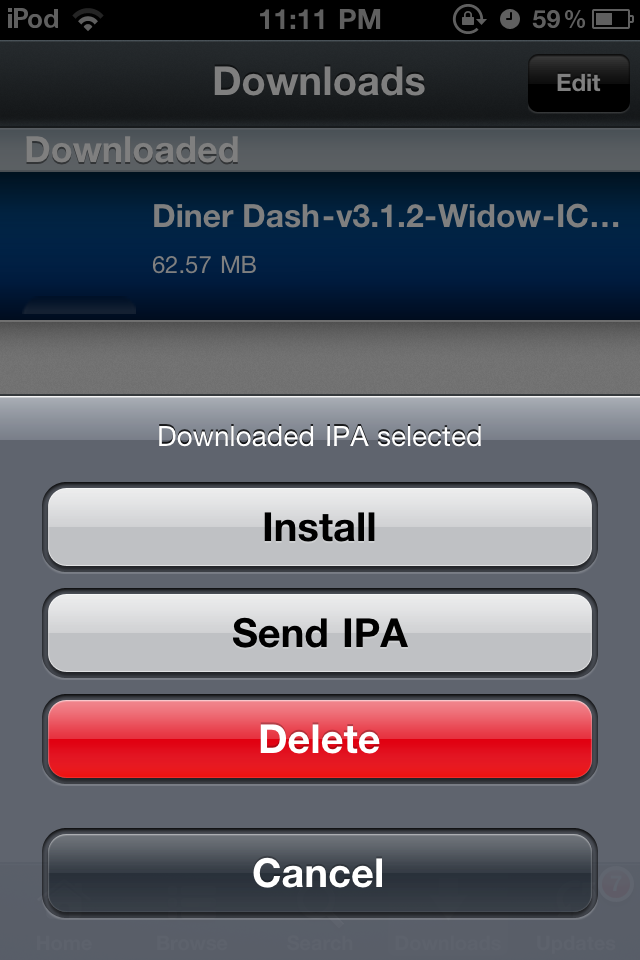
9. When it is done, you can now install it. The screen below shows a completed download (a pop up will again appear notifying that the download is completed, there is supposed to be an icon beside the name of the app).

10. Tap the app. 
11. Select Install. Wait for it to install and then again a pop up will appear notifying that the installation is complete.

You can now see the app in your SpringBoard (what is springboard)! Good luck and enjoy! :)


Saturday, September 10, 2011

How to Install Installous in iPod Touch Using Cydia (with WiFi)

This tutorial is about installing Installous in your idevice using Cydia with internet connection. Installous is used to install third party apps in your iPod Touch, iPad or iPhone. This for jailbroken devices only. 
If you don't have internet connection in your iDevice, you can also install Installous using .deb files. These files can be downloaded using your PC and can be transferred to your iDevice using iPhoneExplorer or iPhoneBrowser.

1. Open Cydia.
2. If you haven't set up Cydia yet, wait for it to load first and then tap User and then Done.
3. Go to Manage then Sources. Select Edit then Add.
4. A pop up should appear. Leave the default text there, just append this source: cydia.hackulo.us
5. A confirmation message will appear, just select Add Anyway.
6. You should now see the Hackulous source in the list.
7. Select Hackulous and then look for Installous from the list.
8. Select Installous then Install > Confirm.
9. Wait for it to install and then select Return to Cydia.