Showing posts with label Notification Center. Show all posts

Wednesday, September 12, 2012

How To Move The Position of the Notifications In LS Colours Lockscreen At The Bottom of the Weather (iPod Touch, iPhone) ?


LS Colours is a really cool lockscreen theme for your device. It features a minimalist design which includes the time, the date and the weather. However, when plenty of notifications shows up, they cover the look of this elegant theme. Then, best thing to do is move the position of the notifications to make room for the full view of this theme. If you want to change the position of your lockscreen notifications from its original position to just below the weather, proceed to the detailed tutorial below.


What you need:

1. Jailbroken device. Typophone 4 from Cydia
3. Browser for your device or OpenSSH and Cyberduck
4. This modified, BarLCD@2x~iphone.png file. Click the transparent image below and then save it to your computer.

The image is not visible.

Step 1: Plug in your device.
Step 2: Open your Apple device browser.
Step 3. Navigate to /private/var/stash/Themes.<random code>/LS Colours.theme/Bundles/com.apple.TelephonyUI
Step 4. Back-up the contents of the folder by selecting all, right-click then Save As.
Step 5. Add BarLCD@2x~iphone.png with the one you downloaded above.
Step 6. Respring.

You can already see that the notifications appear right below the date. Note that even pop ups will appear on this position. Now, you can appreciate the look and feel of the lockscreen for you can see all of its components even if there are plenty of notifications showing up.

Good luck and enjoy! For any further questions or if it doesn't work for you right. Just put up a comment below. :)

Related Posts:


Sunday, June 17, 2012

How To Change Typophone 4 Lockscreen Wallpaper (iPod Touch, iPhone, iPad) ?

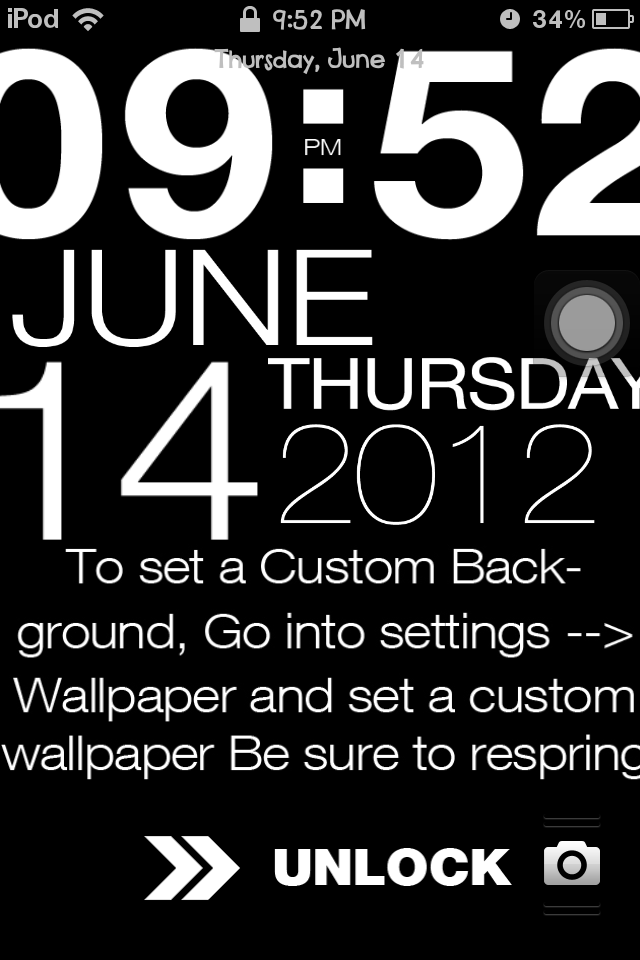
The latest update of the typophone 4 theme fixes the issue of the wallpaper. Below are the steps on how to change the wallpaper.


Note: Device must be jailbroken and has Cydia on it.


Step 1. First, Update Typophone 4 using Cydia (learn here how). After the update finishes successfully, your lockscreen should look like this.


Step 2. Basically, the instructions is on the black lockscreen. Follow the instructions.


Step 3. After that, DO NOT FORGET TO RESPRING. (How To ReSpring?)


Goodluck and enjoy! If this still doesn't work, try changing the wallpaper manually.  :)


Related Posts:
See All Typophone Tweaks and Tricks
How To Move the Notifications Below the Date?

How To Move the Notifications Below the Status Bar?


Thursday, November 24, 2011

List of Cool and Useful Cydia Apps, Tweaks, Themes and Add Ons

This is not arranged in a specific order. These apps, tweaks, themes and add ons are more or less helped improves the usefulness and coolness of the device.

Note: Your device must be jailbroken and has Cydia on it.

1. Winterboard
This app is used to select the themes and other tweaks that you want to apply on your device.


2. Installous
This app is used to browse and install third-party and cracked paid apps.


3. BytaFont
An app used to browse ans install different fonts. This app is also used to set and change the font of your device's default installed fonts.


4. iFile
This app is used to explore hidden files of your device. There is also a built in text editor in this app in which you can use to edit codes with such as css files.


5. MyTube
    You can download videos in your device with this app.

6. PopPod
   This is a pop up controller for your music. The trigger to make this appear can be customized. This makes your Music very very accessible. It has play, previous, next and volume controllers. It even displays the album art and lyrics!

7. ScrollingBoard
    
8. iGotYa
This app can take a snapshot of anyone who tries to unlock your device and fails. Provided, your device has a security lock. After taking a shot, it will automatically send the image to your provided email. The downside however is when  you are in place where not everywhere has a WiFi  thus, it cannot send the picture of the "curious one".


9. Calendar Widget for Notification Centre (Add On)
    This is an add on from Cydia that adds a full blown Calendar to your Notification Centre.

10. Music Center Widget for Notification Centre (Add On)
    This is an add on from Cydia that adds a control for your music to your Notification Centre.

11.QuickNote Widget for Notification Centre (Add On)
    This is an add on from Cydia that adds a Quick Note to your Notification Centre. You can already take notes immediately just by going to the Notification Centre.

12. AppsCenter Widget for Notification Center (Add On)

13. Barrel
The best transition tweak from Cydia. Enjoy the different effects offered by this app that replaces the boring slide effect when transitioning from page to page.


14. Typophone 4
     A very sleek theme for your device with a different lock screen feel.

15. Bigify+
Make your app icons bigger by this tweak. Additionally, you can rotate the icons, change the color, hide icon labels, make them transparent and flip badges based on your preference.


16. Color Keyboard

17. NotificationCenter Enhancer for Notification Centre (Add On)

18. Poof!


Make your apps invisible with this app from Cydia. Available in hackyouriphone repository.


19. Dreamboard
Transform your device's feel with this app. You can apply different themes that not just change the color and background but almost all the components of the system. The usual SpringBoard will be replaced by different interfaces like of that Windows 7, MacOSX Lion, Android etc.

Wednesday, October 26, 2011

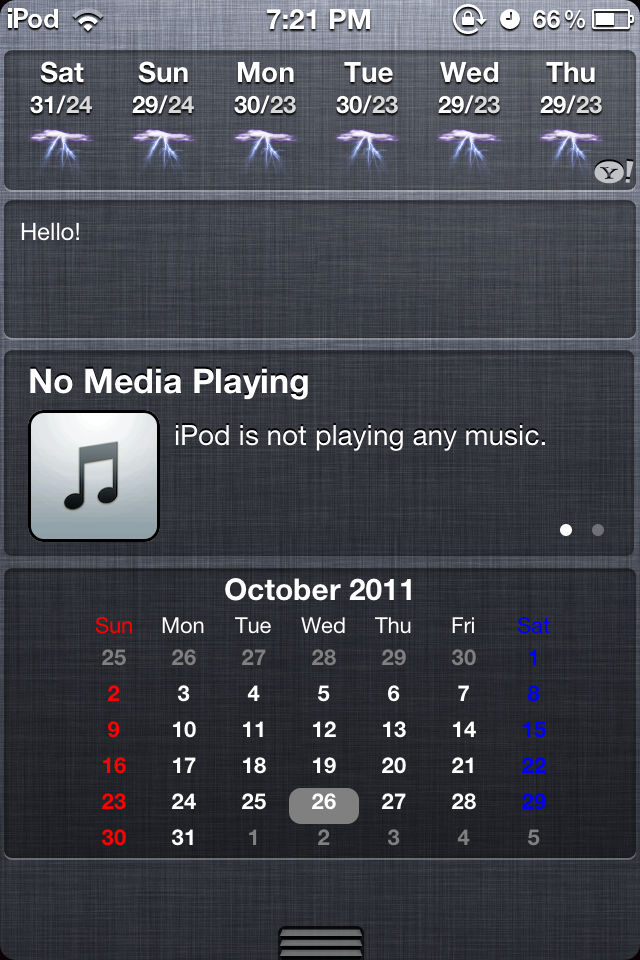
How to Get Calendar Widget for Your Notification Center (iPhone, iPod Touch, iPad)?

Calendar for Notification Center is an add on that enables you to have and view your calendar from the notification center. To acquire this add on, your device must be running on iOS 5 and jailbroken first. These are the steps to get Calendar for Notification Center.


1. Update to the latest iOS (5.0). Learn here how.
2. Jailbreak your device using redsn0w. Learn here how.
3. Open Cydia.
4. Proceed to the Search option. Search for Calendar and look for Calendar for Notification Center. Also, you can go to Manage > Sources > BigBoss repo and look for Calendar for Notification Center and then select it.
5. Install and Confirm.
6. After the installation, select Restart SpringBoard.
7. Go to settings, add Calendar Widget in the Notification Centre.

Enjoy your new add on! :)