Showing posts with label Cydia White. Show all posts

Sunday, June 17, 2012

How To Upgrade/Update Cydia Themes, Apps and Tweaks (iPod Touch, iPhone, iPad)?


Whenever there is an update of a theme, tweak or app in Cydia, it appears under the Changes option of the screen. Below is the detailed steps on how to update to the latest version of any app, tweaks and themes in Cydia.


Note: Your device must be jailbroken and has Cydia on it.


Step 1. Open Cydia. Wait for the updates to be downloaded (these are seen at the top part of the Cydia screen.)
Step 2. Taps Changes option at the bottom of the screen.
Step 3. You can either select one by one to upgrade or Tap the Upgrade(3) at the top-left of the screen.
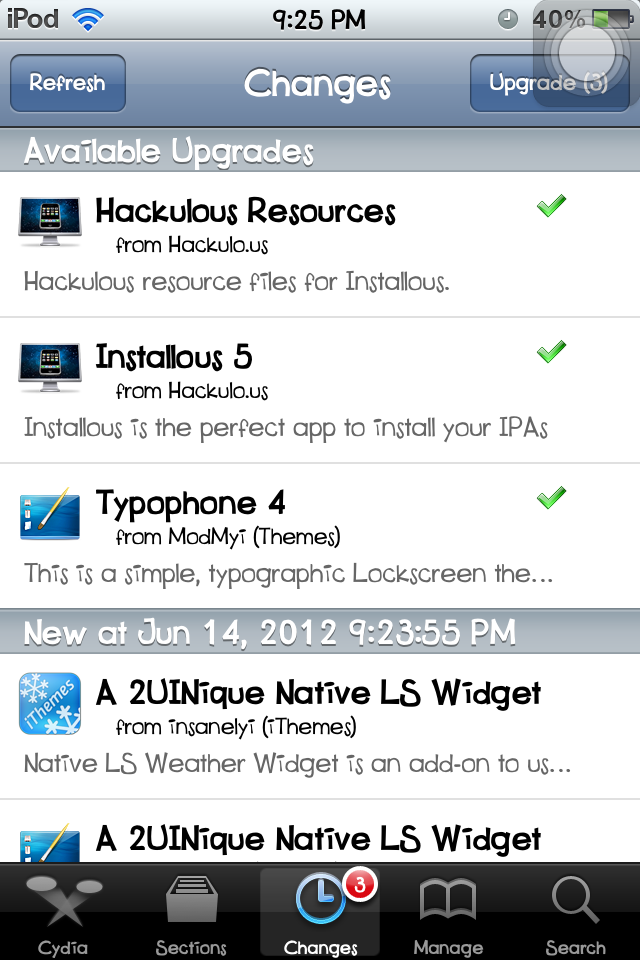


Step 4. Wait for the download and upgrade to finish. Tap Return To Cydia.


Your apps, tweaks and themes are already upgraded to their latest versions.


Good luck and enjoy! :)


Related Posts:
List of Cool and Useful Cydia Apps, Themes and Tweaks
See All Typophone Tweaks and Tricks
How To Move the Notifications Below the Date?

How To Move the Notifications Below the Status Bar?

How To Change The Wallpaper  of the Latest Typophone 4?

How To Jailbreak iOS 5.1 Semi-Tethered in iPod Touch, iPhone, iPad


Please note: 
This is a semi-tethered jailbreak only. Semi-Tethered means you have to boot your device using redsn0w EVERYTIME you reboot your device. So, if you run out of battery completely and happened to be somewhere away from your computer or you don't have any computer with redsn0w on it, you can't use your device. However, if you can put up with this and just ensure you won't lose your battery or reboot your device, let's proceed with the jailbreak process.


1. Download and install the new iTunes 10.6 on your Windows PC or Mac. Connect your iOS device with your computer, it is highly suggested that you back up your device first.


2. Upgrade your iOS device to the final version of iOS 5.1 using iTunes 10.5 on your computer. Proceed here to see detailed instructions on how to update to iOS 5.1.


3. Download the new redsn0w 0.9.10b6 for Mac here. Click here to download redsn0w 0.9.10b6 for Windows. 


4. Launch redsn0w.


5. Select Jailbreak. You don't have to specify the IPSW file before clicking it.


6. Click Next and follow the onscreen instructions to enter the DFU mode or you can enter DFU mode without clicking next if you already know how to. After putting the device into DFU mode, this screen should appear.


7. Wait for the process to end and this screen should appear. Just leave the checkboxes ticked and then click Next.


8. After the progress bar is finished, the process will take place in your device. A lot of white texts should appear in your device, followed by the running pineapple icon and then finally, the Apple logo.


9. The device will turn on but you are not finish yet you still need to boot tether the device, Cydia should appear in your SpringBoard (What is SpringBoard?). Cydia icon is still white just like below (This is for my case). 


10. Boot the device into a tethered jailbroken state in able to complete the jailbreak process. To do this, launch redsn0w again but instead of clicking Jailbreak, go to Extras and click Just Boot.


11. Wait while the program finishes the process and finally, your device is now jailbroken (tethered).


You can now install cracked apps for free (Click here to learn how to install apps for free) by using installing Installous (Click here to learn how to install Installous in your device) and use different kind of cool tweaks and themes by installing Winterboard. 


Experiencing Error 3194? Click here.


Good luck and Enjoy the latest iOS! :)

Monday, December 5, 2011

How to Switch/Power On your Tethered Jailbroken Device When It Runs Out of Power

Tethered jailbreak means that you have to boot tether your device every time it runs out of power or powered off. Below is a series of steps to switch on your tethered jailbroken device when it runs out of power and shuts down. If your device shuts down, you cannot use it until you boot tether it.

Requirements:

1. RedSn0w (preferably, latest version )
2. The device of course

Steps:

1. Open RedSn0w as Administrator. Right-click the RedSn0w icon and choose Run As Administrator.

2. Select Extras. Click Next.
3. Select Just boot. Click Next.

4. Follow the instructions. Power off your device and make sure it is plugged in. Click Next then follow the instructions to enter DFU mode.
5. Wait for RedSn0w to do finish, do not do anything to disrupt the process.


6. When the last screenshot appears, you're done.
7. If you experienced problems when entering DFU mode (DFU mode not detected), just repeat entering DFU mode again.

Good luck and enjoy! :)