Showing posts with label iTunes. Show all posts

Sunday, June 17, 2012

How To Jailbreak iOS 5.1 Semi-Tethered in iPod Touch, iPhone, iPad


Please note: 
This is a semi-tethered jailbreak only. Semi-Tethered means you have to boot your device using redsn0w EVERYTIME you reboot your device. So, if you run out of battery completely and happened to be somewhere away from your computer or you don't have any computer with redsn0w on it, you can't use your device. However, if you can put up with this and just ensure you won't lose your battery or reboot your device, let's proceed with the jailbreak process.


1. Download and install the new iTunes 10.6 on your Windows PC or Mac. Connect your iOS device with your computer, it is highly suggested that you back up your device first.


2. Upgrade your iOS device to the final version of iOS 5.1 using iTunes 10.5 on your computer. Proceed here to see detailed instructions on how to update to iOS 5.1.


3. Download the new redsn0w 0.9.10b6 for Mac here. Click here to download redsn0w 0.9.10b6 for Windows. 


4. Launch redsn0w.


5. Select Jailbreak. You don't have to specify the IPSW file before clicking it.


6. Click Next and follow the onscreen instructions to enter the DFU mode or you can enter DFU mode without clicking next if you already know how to. After putting the device into DFU mode, this screen should appear.


7. Wait for the process to end and this screen should appear. Just leave the checkboxes ticked and then click Next.


8. After the progress bar is finished, the process will take place in your device. A lot of white texts should appear in your device, followed by the running pineapple icon and then finally, the Apple logo.


9. The device will turn on but you are not finish yet you still need to boot tether the device, Cydia should appear in your SpringBoard (What is SpringBoard?). Cydia icon is still white just like below (This is for my case). 
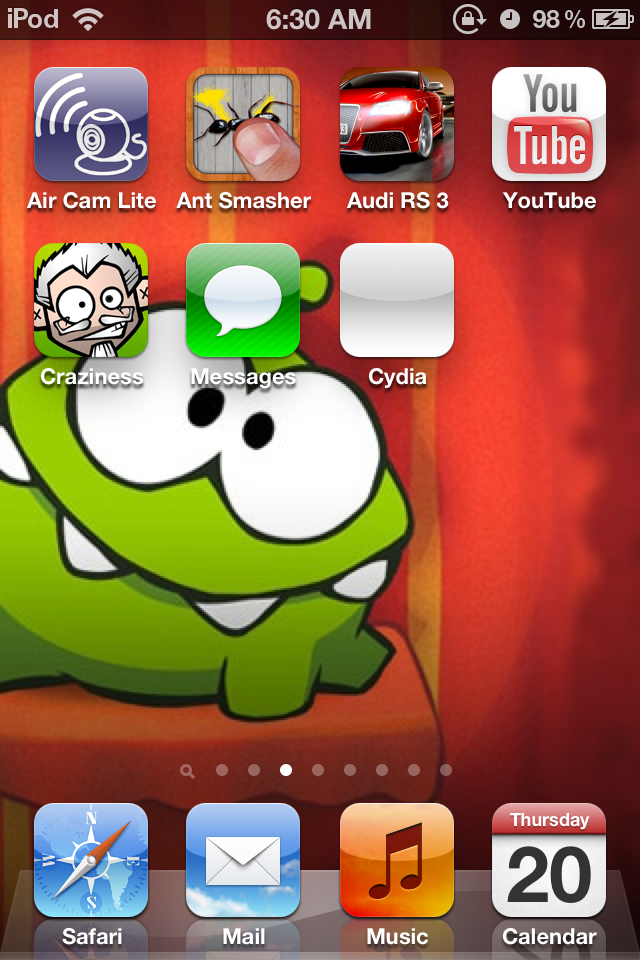


10. Boot the device into a tethered jailbroken state in able to complete the jailbreak process. To do this, launch redsn0w again but instead of clicking Jailbreak, go to Extras and click Just Boot.


11. Wait while the program finishes the process and finally, your device is now jailbroken (tethered).


You can now install cracked apps for free (Click here to learn how to install apps for free) by using installing Installous (Click here to learn how to install Installous in your device) and use different kind of cool tweaks and themes by installing Winterboard. 


Experiencing Error 3194? Click here.


Good luck and Enjoy the latest iOS! :)

Saturday, June 2, 2012

How To Move The Position of the Notifications In Typophone 4 Lockscreen Under the Status Bar (iPod Touch, iPhone, iPad) ?


If you enable your notifications to appear in the Lockscreen, it usually appears right below the time just like on the image on the right. However, if you want it to appear just below the status bar like the image on the left, just follow the simple steps below.


What you need:
1. Jailbroken device
2. Typophone 4 from Cydia
3. Browser for your device or OpenSSH and Cyberduck
4. This modified, BarLCD@2x~iphone.png file. Click the transparent image below and then save it to your computer. It is pretty hard to click the image since it is very small, just move around your cursor until it changes.

BarLCD@2x~iphone.png image 320x1 pixel
This image is intended to be transparent


Step 1: Plug in your device.
Step 2: Open your Apple device browser.
Step 3. Navigate to /private/var/stash/Themes.<random code>/Typophone4.theme/Bundles/com.apple.TelephonyUI
Step 4. Back-up the contents of the folder by selecting all, right-click then Save As.
Step 5. Replace BarLCD@2x~iphone.png with the one you downloaded above.
Step 6. Respring.

You can already see that the notifications appear right below the status bar.

Good luck and enjoy! For any further questions or if it doesn't work for you right, just put up a comment below. :)

Thursday, May 31, 2012

How To Move The Position of the Notifications In Typophone 4 Lockscreen At The Bottom of the Date (iPod Touch, iPhone, iPad) ?

If you enable your notifications to appear in the Lockscreen, it usually appears right below the time like this below.


However, if you want it to appear just below the date like this,


just follow the simple steps below.

What you need:
1. Jailbroken device
2. Typophone 4 from Cydia
3. Browser for your device or OpenSSH and Cyberduck
4. This modified, BarLCD@2x~iphone.png file. Click the transparent image below and then save it to your computer.

The image is not visible.

Step 1: Plug in your device.
Step 2: Open your Apple device browser.
Step 3. Navigate to /private/var/stash/Themes.<random code>/Typophone4.theme/Bundles/com.apple.TelephonyUI
Step 4. Back-up the contents of the folder by selecting all, right-click then Save As.
Step 5. Replace BarLCD@2x~iphone.png with the one you downloaded above.
Step 6. Respring.

You can already see that the notifications appear right below the date. Note that even pop ups will appear on this position. I cannot make it exactly below because the elements of the Typophone 4 theme is different from the different versions. However, I will still try to experiment with the settings.

Good luck and enjoy! For any further questions or if it doesn't work for you right. Just put up a comment below. :)

Related Posts:

Tuesday, May 1, 2012

How To Update/Upgrade iPod, iPhone, iPad to iOS 5.1 using iTunes

 
This is the latest iOS release of Apple. Below are the steps to update to this latest version.


Requirements:

1. The device you want to update of course
2. iTunes (Latest Version 10.6)
3. USB Cable Connector

Steps:

1. Open iTunes.
2. Connect the device.
3. Back it up. To back up, right-click your device located at the left side of iTunes window then select Back Up. This is done to prevent the loss of your data if something goes wrong and also this back up will be used later for restoring.
4. Select your device again.
5. The Summary of your device should appear. Click Update.
6. If you have not yet downloaded the firmware (iOS 5.1), click Download and Update, if you have, click Update.
7. Wait for iTunes to do its thing (such as verify the software, back up, update then restore).

After that, you already have the latest iOS in your device. Good luck and enjoy! :)
For any problems, just comment.

Thursday, October 20, 2011

How to Fix iTunes Error 3194 while Restoring Device/Updating to iOS 5 (iPod Touch, iPhone, iPad)?

View the List of All Errors here.

There are two ways of fixing this error. Some say that it can be fixed by TinyUmbrella but it did not work for me. So here is the other way.

1. Open iTunes.
2. Connect your device.
3. Unhide all your files and folders. Click here to learn how.
4. Go to your hosts file (which is located in this directory C:\Windows\System32\drivers\etc) and then open it with any Text Editor program you have in your computer and then erase the line #74.208.10.249 gs.apple.com. Finally, save it. 
5. Enter into recovery mode. Here's how: 
   a. Switch off your device.
   b. Press Sleep/Power button and Home button simultaneously until  for 15 seconds.
       The apple logo should appear and disappeas while doing this.
   c. Release Power button, continue holding Home button for 10 seconds until a pop up window appear in iTunes saying you have entered the recovery mode.
6. Proceed then click Restore > Restore and Update.
7. Wait for the device to restore and you are finished!

Some may experience stuck up in the iTunes window wherein it says "Restoring apps.." but the progress bar isn't progressing.
Just stop the process or kill the program and then enter the recovery mode again and restore. It will proceed on restoring your
music and videos. Restore your apps later instead.

Good luck! :)

Wednesday, October 19, 2011

How to Find Your Back Ups for iPod Touch, iPhone and iPad

If want to access or copy your previous device back ups, just go to the path below.
Note: This is for Windows only. This directory is specifically for Windows 7. Other Windows users might want to look under other folder names in able to go to the exact directory. However, this is more or less the path.

1. Show hidden folders and files first so that you can navigate to the directory. In able to unhide folders, proceed here.
2. And then proceed to this directory
     C:\Users\<YOUR PC NAME>\AppData\Roaming\Apple Computer\MobileSync\Backup
3. As you can see, there are many folders with a long string of letters and numbers as the folder name. Just look at the date and time the folder was created under its details to know which one is the latest back up.

How to Jailbreak iOS 5 (Tethered) Using RedSnow


Please note: 
This is a tethered jailbreak only. Tethered means you have to boot your device using redsn0w EVERYTIME you reboot your device. So, if you run out of battery completely and happened to be somewhere away from your computer or you don't have any computer with redsn0w on it, you can't use your device. However, if you can put up with this and just ensure you won't lose your battery or reboot your device, let's proceed with the jailbreak process.


1. Download and install the new iTunes 10.5 on your Windows PC or Mac. Connect your iOS device with your computer, it is highly suggested that you back up your device first.


2. Upgrade your iOS device to the final version of iOS 5 using iTunes 10.5 on your computer. Proceed here to see detailed instructions on how to update to iOS 5.


3. Download the new redsn0w 0.9.9b6 for Mac here. Click here to download redsn0w 0.9.9b6 for Windows. 


4. Launch redsn0w.


5. Select Jailbreak and install Cydia. You don't have to specify the IPSW file before clicking it.


6. Click Next and follow the onscreen instructions to enter the DFU mode or you can enter DFU mode without clicking next if you already know how to. After putting the device into DFU mode, this screen should appear.


7. Wait for the process to end and this screen should appear. Just leave the checkboxes ticked and then click Next.


8. After the progress bar is finished, the process will take place in your device. A lot of white texts should appear in your device, followed by the running pineapple icon and then finally, the Apple logo.

9. The device will turn on but you are not finish yet you still need to boot tether the device, Cydia should appear in your SpringBoard (What is SpringBoard?). Cydia icon is still white just like below (This is for my case). 


10. Boot the device into a tethered jailbroken state in able to complete the jailbreak process. To do this, launch redsn0w again but instead of clicking Jailbreak and Install Cydia, go to Extras and click Just Boot.


11. Wait while the program finishes the process and finally, your device is now jailbroken (tethered).


You can now install cracked apps for free (Click here to learn how to install apps for free) by using installing Installous (Click here to learn how to install Installous in your device) and use different kind of cool tweaks and themes by installing Winterboard. 


Experiencing Error 3194? Click here.


Good luck and Enjoy the latest iOS! :)

Tuesday, October 18, 2011

How to update to iOS 5 (iPod Touch, iPhone, iPad) using iTunes?

1. Update iTunes first to the latest version.
2. Plug in your device and sync. It is highly recommended that you back up first your device before updating. After plugging in, a pop will appear informing that there is a latest version of firmware which is iOS 5.0. If there is no pop up appeared, select your device located at the left part of iTunes,


and then select Check for Update or Update. It will then prompt you if you really want to update, select update.

 3. iTunes will then start downloading updates. This will take probably 2-4 hours depending on your internet connections speed.
4. After downloading, iTunes will update the firmware of your device to iOS 5. Just wait it to be finished and your done.

Good luck and enjoy! :)