Showing posts with label iPhoneBrowser. Show all posts

Thursday, August 16, 2012

How To Move The Position of the Notifications In Prestige HD Theme At The Bottom of the Date (iPod Touch, iPhone, iPad) ?


Make your notifications appear right under the status bar! Below are the detailed procedure to do that to your Prestige HD Theme also. 


If you enable your notifications to appear in the Lockscreen, it usually appears right below the date like this below or a little below more.


However, if you want it to appear just below the status bar like that above, just follow the simple steps below.

What you need:
1. Jailbroken device
2. Prestige HD from Cydia (Learn to get Prestige HD here)
3. Browser for your device or OpenSSH and Cyberduck
4. This modified, BarLCD@2x~iphone.png file. Click the transparent image below and then save it to your computer. It is pretty hard to click the image since it is very small, just move around your cursor until it changes.

BarLCD@2x~iphone.png image 320x1 pixel
This image is intended to be transparent


Step 1: Plug in your device.
Step 2: Open your Apple device browser.
Step 3. Navigate to /private/var/stash/Themes.<random code>/Prestige-HD.theme/Bundles/com.apple.TelephonyUI
Step 4. Back-up the contents of the folder by selecting all, right-click then Save As.
Step 5. Delete BarLCD@2x.png. Copy BarLCD@2x~iphone.png to the folder.
Step 6. Respring.

You can already see that the notifications appear right below the status bar.

Good luck and enjoy! For any further questions or if it doesn't work for you right, just put up a comment below. :)

Thursday, November 24, 2011

How to Change the Color of Pop Up Alerts (iPhone/iPod Touch/iPad)

Ever wanted to change the color of your blue pop up alerts just like the picture below. The pop up alert color on this photo is Aqua. And by installing Pop Up Colors from Cydia, there are many more available colors like Green, Pink, Red, Purple, Black, Orange and Yellow. To learn how to get this tweak, proceed below.,

Note: Your device must be jailbroken and has Cydia on it.


1. Open Cydia.
2. Select Search option at the bottom.
3. Type Pop Up Colors in the Search box.
4. Select Pop Up Colors.
5. Install then Confirm. Wait for it to finish.
6. Open Winterboard. Select Select Themes.
7. Select the color you like.

8. Respring your device. (What is ReSpring?)

Good luck and enjoy! :)

How to Change the Wallpaper of Typophone 4 or Any Other Lockscreen (iPhone/iPod Touch/iPad)

If you want to change the default wallpaper of your themed Lockscreen just like this

Before
After


just proceed to the tutorial below.

What you will need:
1. Jailbroken device with Cydia already on it
2. iDevice Explorer such as iPhoneBrowser or openSSH & Cyberduck
3. Desired new wallpaper

Let's get started,

1. Plug-in you device to the computer.
2. Open iPhoneBrowser or any explorer you have.
3. Navigate to this directory - /private/var/stash/Themes.IJomeN/<name of your theme> In this tutorial we are modifying Typophone 4 so look for the folder named Typophone 4.theme.
5. Go to the folder where you saved your desired new wallpaper. rename its filename to "LockBackground" and make sure it is a PNG file (not JPEG,GIF,BMP,etc). You can always edit its filetype using Adobe Photoshop.
4. Look for the LockBackground.png and then save it first to your computer if ever you want to retrieve it and make it your wallpaper again. Again select LockBackground.png then right-click it, select Replace File.. and replace it with the desired new wallpaper.
5. Respring your device and you should now see that your wallpaper is changed.


Good luck and enjoy!

Monday, November 21, 2011

How to Remove Lockscreen Clock in iOS 5 (iPod/iPhone)

For the previous iOS, Lockscreen Clock Hide from Cydia simply solves the problem of getting rid of the Clock in the Lockscreen whenever you want to fully experience the beauty of your new Lockscreen Theme. However, the Lockscreen Clock Hide when installed on devices running iOS 5, it just doesn't work because the SpringBoard is put into Safe Mode. To solve this problem, I have learned through forums of a way to get rid of the Lockscreen Clock.


Note: This tutorial is a bit long but fairly easy. I just wrote them in details so that it would be clearer.

Before
After

First, here are the things you need:

1. Modified Lock Clock.ttf and BarLCD@2x~iphone.png to hide the Lockscreen Clock. Download Here and then unzip.
2. plist file editor. You will need this to edit the file. plist file that will be shown later. Download a plist editor here for Windows or search for one in the web. I recommend for iPodRobot plist editor.
3. iDevice explorer like iPhoneBrowser. Just search for it or download here.

Let's proceed in removing the Lockscreen Clock now:

1. Connect your device to your computer.
2. Open iPhoneBrowser or any other explorer you have. Navigate to this directory: /var/mobile/Library/Caches
3. Look for DateFormats.plist. Right-click this file and click Save As. Save it to a location in your computer where you can easily retrieve it.
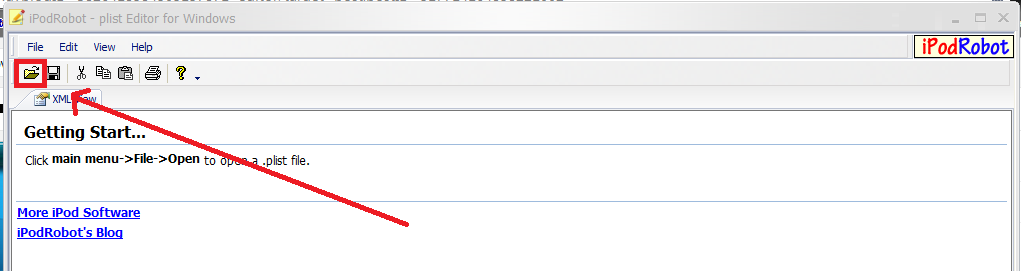
4. Here is where you need the plist editor. Open the plist editor. Select Open File Icon and look for the DateFormats.plist in your computer then open.

iPodRobot plist editor

5. Look for this line which you can find at the bottom part of the file


     and delete EEEE d MMMM but leave a space.


6. Save the changes.
7. Go to iPhoneBrowser again, right-click DateFormats.plist and select Replace File..
8. Replace it with the one you saved and modified in your computer.
9. Using iPhoneBrowser again, proceed to this directory: /System/Library/Fonts/Cache/
10. Look for LockClock.ttf. Replace it with the one you downloaded from the link provided above.
11. After that, navigate to this directory: /System/Library/PrivateFrameworks/Telephony.UIFrameworks/
12. Look for BarLCD@2x~iphone.png and again replace it with the one from the link above. Note: If you prefer that the notifications are right below the Status Bar, replace BarLCD@2x~iphone.png with the one from this link instead from the one from the link above.
13. Respring your device.

Let me know if there are problems.
Good luck and Enjoy! :)