Showing posts with label Springboard. Show all posts

Monday, October 8, 2012

How To Control iPhone, iPod Touch Using A PC or Mac?

There are times that you want to view the SpringBoard (What is SpringBoard?) in your PC or Mac, or even control it using your computer.

VNC is an application that helps you achieve that. It allows the user to view the display of the device on the desktop provided VNC is installed in the computer and the device is jailbroken. 

Proceed below for the detailed procedure on how to get VNC and use it.


What you need:
1. VNC installer [download here]
2. Jailbroken device with Cydia on it [How to Jailbreak iOS 5.1]
3. Apple USB Data Cable
3. PC or Mac

Procedure:
1. Download VNC installer that corresponds to your OS. Click the image below to proceed to the download page.

2. On your mobile device, launch Cydia.
3. Go to the Search option. Search for Veency. Install, Confirm and wait.
4. When the download and installation are finished, you can now connect the your mobile device to the computer using the cable.

5. Proceed to the location where you downloaded the installer.

6. Double-click the installer. Enter the IP Address of your device. [ How To Find the IP Address of iPod Touch, iPhone, iPad ]. Enter this IP Address in the field beside "VNC Server:".


7. Click Connect. VNC Viewer will issue a warning if the connection in unencrypted, meaning there is no password for the connection between your device and the computer. 


8. Ignore the warning by clicking Continue.
9. The SringBoard should now appear in the desktop. Control your mobile device using your mouse. Password and other settings can be found under Settings>Veency.


Good luck and enjoy! :)
Comments away! :)

Monday, August 13, 2012

How To Get The Original Default Typophone 4 Blue Drop Background?

Here's the default blue drop on blue background of the old versions of Typophone 4 Lockscreen Theme. Save it to your device and choose it as your lockscreen wallpaper if you might. :)

640 x 960 pixels

Saturday, June 2, 2012

How To Move The Position of the Notifications In Typophone 4 Lockscreen Under the Status Bar (iPod Touch, iPhone, iPad) ?


If you enable your notifications to appear in the Lockscreen, it usually appears right below the time just like on the image on the right. However, if you want it to appear just below the status bar like the image on the left, just follow the simple steps below.


What you need:
1. Jailbroken device
2. Typophone 4 from Cydia
3. Browser for your device or OpenSSH and Cyberduck
4. This modified, BarLCD@2x~iphone.png file. Click the transparent image below and then save it to your computer. It is pretty hard to click the image since it is very small, just move around your cursor until it changes.

BarLCD@2x~iphone.png image 320x1 pixel
This image is intended to be transparent


Step 1: Plug in your device.
Step 2: Open your Apple device browser.
Step 3. Navigate to /private/var/stash/Themes.<random code>/Typophone4.theme/Bundles/com.apple.TelephonyUI
Step 4. Back-up the contents of the folder by selecting all, right-click then Save As.
Step 5. Replace BarLCD@2x~iphone.png with the one you downloaded above.
Step 6. Respring.

You can already see that the notifications appear right below the status bar.

Good luck and enjoy! For any further questions or if it doesn't work for you right, just put up a comment below. :)

Thursday, May 31, 2012

How To Move The Position of the Notifications In Typophone 4 Lockscreen At The Bottom of the Date (iPod Touch, iPhone, iPad) ?

If you enable your notifications to appear in the Lockscreen, it usually appears right below the time like this below.


However, if you want it to appear just below the date like this,


just follow the simple steps below.

What you need:
1. Jailbroken device
2. Typophone 4 from Cydia
3. Browser for your device or OpenSSH and Cyberduck
4. This modified, BarLCD@2x~iphone.png file. Click the transparent image below and then save it to your computer.

The image is not visible.

Step 1: Plug in your device.
Step 2: Open your Apple device browser.
Step 3. Navigate to /private/var/stash/Themes.<random code>/Typophone4.theme/Bundles/com.apple.TelephonyUI
Step 4. Back-up the contents of the folder by selecting all, right-click then Save As.
Step 5. Replace BarLCD@2x~iphone.png with the one you downloaded above.
Step 6. Respring.

You can already see that the notifications appear right below the date. Note that even pop ups will appear on this position. I cannot make it exactly below because the elements of the Typophone 4 theme is different from the different versions. However, I will still try to experiment with the settings.

Good luck and enjoy! For any further questions or if it doesn't work for you right. Just put up a comment below. :)

Related Posts:

Tuesday, May 29, 2012

How To Hide Your Springboard Icons Using A Cydia App: Poof (iPod Touch, iPhone, iPad )?

Note: Your device MUST BE JAILBROKEN and HAS CYDIA ON IT.

Poof is an Cydia app that enables the users of the device to hide the icons in the Springboard (What is Springboard?). It somehow makes them invisible, the only way to access them is to search them through the Spotlight Search or unhide them using the same app - Poof. Below are the steps to install Poof.


Step 1. Open Cydia.


Step 2. Go to Search options and search for Poof. It is under BigBoss repository.
Step 3. Select Poof.


Step 4. Install then Confirm.
Step 5. Wait for the download ans installation to finish.


Step 6. After that, you should already see Poof icon in your springboard.


Here's how to hide the icons.

Step 7. Open Poof. Wait for it to enumerate the applications.
Step 8. Toggle to Off to hide icons.


Step 9. Respring(What is Respring?) . If you don't resping, the icons will remain in your springboard (How to Respring?).

Goodluck and enjoy! :)

How To ReSpring (iPod Touch, iPhone, iPad) ?


Respring means that you are refreshing your Springboard. There are multiple ways to respring.
Below are the two ways to respring.


Through Winterboard:
Winterboard should be installed first from Cydia. Click here to learn how to install Winterboard.

Step 1. Open Winterboard.
Step 2. Tap Select Themes.


Step 3. Untick one theme and then tick that theme again.


Step 4. Tap Winterboard.
Step 5. Tap Respring. Wait for the device to respring.


Through ActionBoard:
ActionBoard should be installed first from Cydia.

Step 1. Activate ActionBoard. ActionBoard will be activated when you activate the AppSwitcher which means double tap the Home button.
Step 2. Tap System.


Step 3. Tap Respring. Wait for the device to respring.


Goodluck! For any further questions, just put up a comment below. :)


Monday, December 5, 2011

How To Change The Font of Your Jailbroken iPod Touch, Iphone, Ipad


BytaFont

BytaFont is an app from Cydia that enables you to browse, select, and install various types of fonts other than the ones installed on default on your device. The latest version of BytaFont is compatible on iOS 5.


Note: Your device must be jailbroken and has Cydia on it.

1. Open Cydia.
2. Select Search Option at the bottom.
3. Search for BytaFont.
4. Install and Confirm. Wait for it to finish installing.

Once BytaFont is already finish installing, you can now see its icon on your SpringBoard. To install a new font, there are two ways:

By Using BytaFont:

1. Open BytaFont.
2. Browse for new fonts.
3. Select Install.
4. BytaFont will redirect to Cydia. Install the font from there.
5. Wait for the installation to finish.

By Using Cydia:

1. Open Cydia.
2. Search for fonts.
3. Select the font.
4. Install then Confirm.
5. Wait for the installation to finish.

To use the font, 

1. Open BytaFont.
2. Select Basic option at the bottom.
3. Tick the one you like and respring.

Good luck and enjoy! :)

Wednesday, November 23, 2011

How to Remove Typophone 4 Lockscreen on iPod Touch/iPhone/iPad Using Cydia (Upgrade to Latest Version)

There is already a release of the latest version of the Typophone 4 theme which removes the Lockscreen and set the Notifications below the time. You just have to install the latest version from Cydia or upgrade the Typophone 4.

Notifications appear right below the time


Note: Your device must be jailbroken and has Cydia on it.

To install Typophone 4, proceed to this tutorial. To upgrade, here's how:

1. Open Cydia.
2. Select Changes option at the bottom.
3. Select Typophone 4.
4. Select Modify > Upgrade.
5. Wait for it to finish then respring. After that, you can now see your lockscreen without the default lockscreen clock.


Good luck and enjoy! :)

Monday, November 21, 2011

How to Remove Lockscreen Clock in iOS 5 (iPod/iPhone)

For the previous iOS, Lockscreen Clock Hide from Cydia simply solves the problem of getting rid of the Clock in the Lockscreen whenever you want to fully experience the beauty of your new Lockscreen Theme. However, the Lockscreen Clock Hide when installed on devices running iOS 5, it just doesn't work because the SpringBoard is put into Safe Mode. To solve this problem, I have learned through forums of a way to get rid of the Lockscreen Clock.


Note: This tutorial is a bit long but fairly easy. I just wrote them in details so that it would be clearer.

Before
After

First, here are the things you need:

1. Modified Lock Clock.ttf and BarLCD@2x~iphone.png to hide the Lockscreen Clock. Download Here and then unzip.
2. plist file editor. You will need this to edit the file. plist file that will be shown later. Download a plist editor here for Windows or search for one in the web. I recommend for iPodRobot plist editor.
3. iDevice explorer like iPhoneBrowser. Just search for it or download here.

Let's proceed in removing the Lockscreen Clock now:

1. Connect your device to your computer.
2. Open iPhoneBrowser or any other explorer you have. Navigate to this directory: /var/mobile/Library/Caches
3. Look for DateFormats.plist. Right-click this file and click Save As. Save it to a location in your computer where you can easily retrieve it.
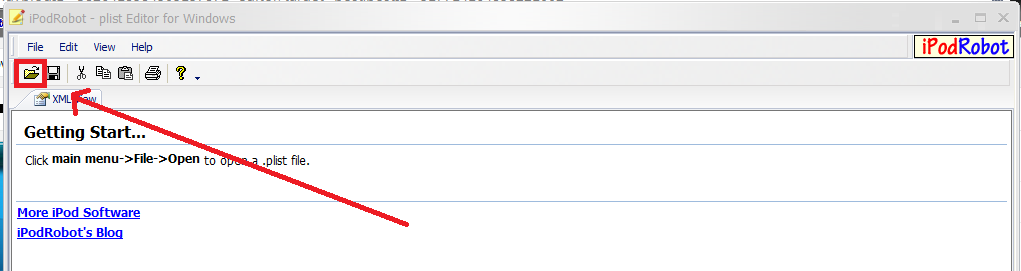
4. Here is where you need the plist editor. Open the plist editor. Select Open File Icon and look for the DateFormats.plist in your computer then open.

iPodRobot plist editor

5. Look for this line which you can find at the bottom part of the file


     and delete EEEE d MMMM but leave a space.


6. Save the changes.
7. Go to iPhoneBrowser again, right-click DateFormats.plist and select Replace File..
8. Replace it with the one you saved and modified in your computer.
9. Using iPhoneBrowser again, proceed to this directory: /System/Library/Fonts/Cache/
10. Look for LockClock.ttf. Replace it with the one you downloaded from the link provided above.
11. After that, navigate to this directory: /System/Library/PrivateFrameworks/Telephony.UIFrameworks/
12. Look for BarLCD@2x~iphone.png and again replace it with the one from the link above. Note: If you prefer that the notifications are right below the Status Bar, replace BarLCD@2x~iphone.png with the one from this link instead from the one from the link above.
13. Respring your device.

Let me know if there are problems.
Good luck and Enjoy! :)

Tuesday, November 15, 2011

How to Get Dreamboard for iPod/iPhone/iPad Using Cydia

Dreamboard is an app that can be downloaded using Cydia. It can be used to change your default SpringBoard layout to a whole new different design like of that Windows 7, OS Lion, Andriod and Galaxy SII designs. Here's how you can get Dreamboard and start using new and cool design layout for your device.

1. Open Cydia.
2. Select Search option at the bottom part.
3. Seach for Dreamboard (or look for it under ModMyi repo).
4. Install and Confirm.
5. Wait for it to install.

You can now install different Dreamboard themes. To select a newly installed theme:

1. Open Dreamboard.


2. Select the theme you want to use.
3. Wait while the device prepares the new theme. Your device might reSpring during this process.

Good luck and enjoy! :)

Thursday, October 20, 2011

How to Install Winterboard in iPod Touch, iPhone, iPad Using Cydia

Winterboard is used to install and set different themes and tweaks for your device. You will not be able to install and use the themes if Winterboard is not install. So, let's get started.

Note: I am using iOS 5 Tethered Jailbreak. I cannot just reboot my device after installing Winterboard since it will be stuck on the apple logo, if this happens just boot tether your device again. Or better yet, do not press the Reboot Device option after the installation. Instead, just press the Home button and boot tether your device.

1. Open Cydia. If it is not yet set, select User then Done. Wait for it to finish loading the packages.
2. Select Search option at the bottom.


3. Type Winterboard in the search box at the top part. Select Winterboard.


4. Select Install > Confirm.


5. Wait for the download and installation to finish. For users that are on untethered jailbreak, just go and select Reboot Device.  However, for tethered jailbreak users, there are more steps for you. If you reboot the device, it will be stuck on the apple logo. To prevent this, instead of selecting Reboot Device, just press the Home button and then go with the boot tether process. Proceed here to learn how to boot tether your device.


You can now install and use different themes and tweaks in your device!
Good luck and enjoy! :)


Wednesday, October 19, 2011

How to Jailbreak iOS 5 (Tethered) Using RedSnow


Please note: 
This is a tethered jailbreak only. Tethered means you have to boot your device using redsn0w EVERYTIME you reboot your device. So, if you run out of battery completely and happened to be somewhere away from your computer or you don't have any computer with redsn0w on it, you can't use your device. However, if you can put up with this and just ensure you won't lose your battery or reboot your device, let's proceed with the jailbreak process.


1. Download and install the new iTunes 10.5 on your Windows PC or Mac. Connect your iOS device with your computer, it is highly suggested that you back up your device first.


2. Upgrade your iOS device to the final version of iOS 5 using iTunes 10.5 on your computer. Proceed here to see detailed instructions on how to update to iOS 5.


3. Download the new redsn0w 0.9.9b6 for Mac here. Click here to download redsn0w 0.9.9b6 for Windows. 


4. Launch redsn0w.


5. Select Jailbreak and install Cydia. You don't have to specify the IPSW file before clicking it.


6. Click Next and follow the onscreen instructions to enter the DFU mode or you can enter DFU mode without clicking next if you already know how to. After putting the device into DFU mode, this screen should appear.


7. Wait for the process to end and this screen should appear. Just leave the checkboxes ticked and then click Next.


8. After the progress bar is finished, the process will take place in your device. A lot of white texts should appear in your device, followed by the running pineapple icon and then finally, the Apple logo.

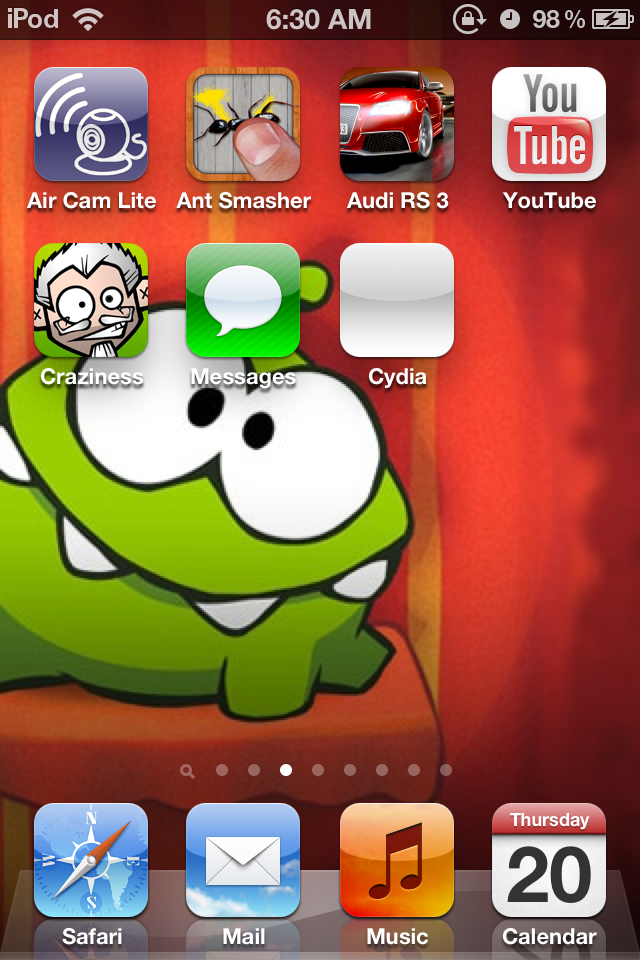
9. The device will turn on but you are not finish yet you still need to boot tether the device, Cydia should appear in your SpringBoard (What is SpringBoard?). Cydia icon is still white just like below (This is for my case). 


10. Boot the device into a tethered jailbroken state in able to complete the jailbreak process. To do this, launch redsn0w again but instead of clicking Jailbreak and Install Cydia, go to Extras and click Just Boot.


11. Wait while the program finishes the process and finally, your device is now jailbroken (tethered).


You can now install cracked apps for free (Click here to learn how to install apps for free) by using installing Installous (Click here to learn how to install Installous in your device) and use different kind of cool tweaks and themes by installing Winterboard. 


Experiencing Error 3194? Click here.


Good luck and Enjoy the latest iOS! :)