Wednesday, March 20, 2013

How To Set Up New iPod Touch, iPhone, iPad in iOS6?


This tutorial is suitable for new Apple users or if you have just updated to iOS 5 because frequent Apple users are most likely used to setting up their devices, I presume? :)

Since iOS 5, you can now set up your device even without iTunes. To do this, you just need a charged device and ideally an internet connection for configuring other stuffs like Apple ID.

Please follow the procedure below to set up.

Note: The device I used is iPod Touch 5 but the procedure below is almost for all Apple devices.


1. Power on your device by pressing the button located on the top of the device.

2. Unlock the device by sliding the arrow icon to the right.
3.  Select you Language, and your Country.


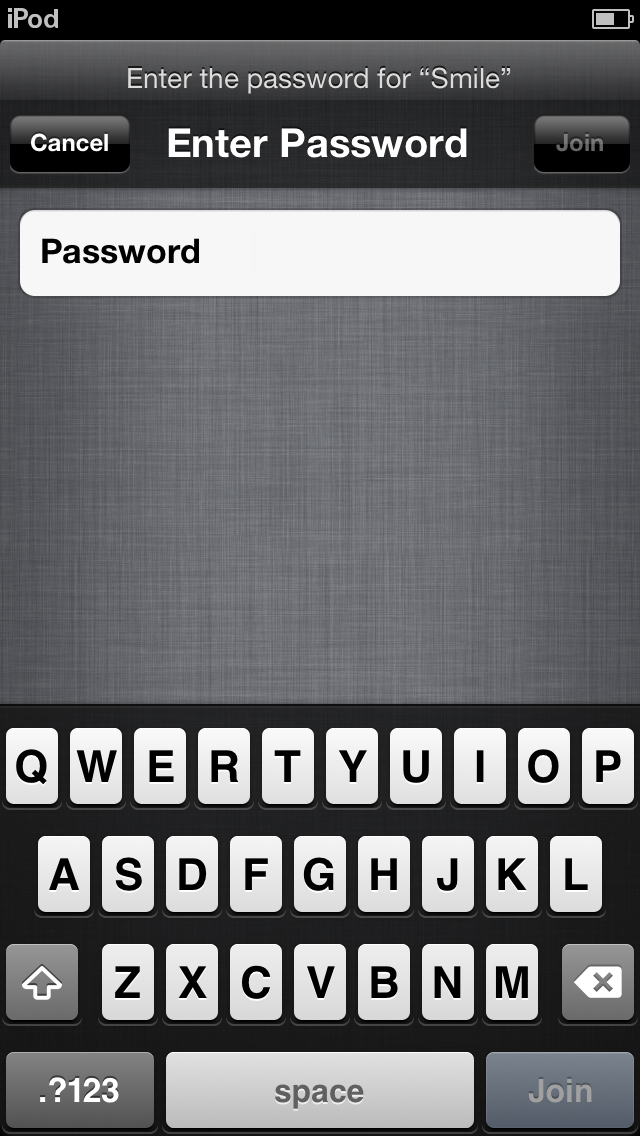
4. Choose your connection and enter your password.


 5. Enable/Disable Location Services if you want your location to be determined.

6.  Set up a new iPod Touch or Restore from an existing back-up.
 7. Enter your Apple ID if you have an existing one, Sign up for a new Apple ID or jsut skip this step.


 8. Agree to the Terms and Conditions to continue.


 9.  Set up other settings such as iCloud, Find my iPod (I recommend this one), and Diagnostics.


10. Register your device.


11. Finally, Start using your device! :)


Monday, February 11, 2013

How To Add Back Instagram To Twitter Image Preview in Mozilla Firefox?


1. Open Mozilla Firefox v18.0.2.
2. Go to the Firefox Menu > Addons.
3. Go the Get Addons tab. There are many available addons that adds back Instagram to Twitter. Choose one then click Install. Restart the browser if needed.

4. You can now view Instagram photos directly from Twitter.

Good luck and enjoy! ♥

Sunday, January 20, 2013

How To Pay Bills Through Personal Metrobank Direct?


Below are the steps on how to pay your bills online using Metrobank Direct. This waorks if you have an existing account in Metrobank and have already applied for a Metrobank Direct account. In my case, I am using my Metrobank payroll account to pay my bills such as Femme Visa credit card and broadband.

Step 1. Go to https://personal.metrobankdirect.com/
Step 2. Log in using the username ebanking@metrobank.com.ph emailed and the password mailer the bank branch gave you.
Step 3. Go to the Pay Bills link at the left side.


Step 3
. Enter the institution/company you want to send the payment to, 
account number (not your Metrobank account but the account number for that company, e.g. account number in Globe, credit card number), and the amount you wish to pay. Reference No. is not required even though there is an asterisk beside that field.Step 4. Click Continue. Make sure all the information are correct before proceeding.


Step 5. Click Confirm if you are sure about all the information.
Step 6. Congratulations! You have now paid your bills online! You can hit Print if you want a copy of the transaction receipt.
Good luck and enjoy! :)

Monday, January 7, 2013

How To Commute To Laguna From EDSA Using Public Tranport (Bus)?


There are numerous bus terminals in EDSA that can take you to Laguna. This post is specifically for commuters who would like to go to Calamba, Laguna or to Pansol, Laguna.

From EDSA, ride a bus bearing Calamba, Lucena, Lipa, or Batangas signboard. You can opt to ride a bus parked inside a terminal which waits for passengers or just wait by the side of the highway and hail one. Once inside, tell the conductor, you wish to be dropped by Turbina.

Upon reaching Turbina, cross the road to ride a jeepney bearing SM Calamba/Crossing signboard. You can ask the driver to drop you off at SM Calamba since it is the most known and safest place for tourist to start with.

There are many tricycles parked there that can take you to famous locations in the place (Rizal's Residence, Pasol Hot Springs). The fare is only P20 minimum if I am not mistaken.

Enjoy the travel and adventure! :)

How To Sign Up An Apple ID With Free Option as Payment Method Using Your Device?


Note: Make sure you still don't have an existing Apple ID.

1. Launch AppStore in iTunes.
2. Select one FREE app.
3. Select Install.
4. A form will appear telling you that you don't have an existing Apple ID, proceed to signing up.
5. In the Payment Methods, along with the credit card options, there should be a free (None) option. Select that and continue.
6. You now have an Apple ID with free as payment method.

Goodluck and enjoy! :)

Thursday, October 25, 2012

How To Commute To Manila From Tagaytay Using Public Transport (Bus)?


There are numerous bus passing Aguinaldo Highway which is the main road in Tagaytay. If you would like to be dropped off at Buendia, take the bus with Taft LRT Buendia signboard. While, if you would like to be dropped off at Cubao or anywhere along EDSA that is along the way to Cubao, take the bus bearing Kamias Cubao signboard.

The fare will not exceed a hundred pesos. Travel time will be a little bit longer compared when you take a private vehicle since the bus passes through Cavite instead.

Good luck and enjoy! :)

Tuesday, October 23, 2012

How To Commute To Tagaytay From EDSA Using Public Transport (Bus)?


There are buses parked in EDSA Pasay Rotonda that has the sign board Olivarez, Tagaytay. Those are the bus you'd want to ride. There are ordinary and air-conditioned buses available. The fare doesn't exceed Php 100.00. 

However, the travel is a little bit longer compared when you would hire a private vehicle because the route is different. The shorter route is through SLEX and the bus takes the Cavite route instead. It would  take approximately 3 hours to get to Aguinaldo Highway, Tagaytay.

When the conductor asks you your destination, tell him Olivares. Upon arriving Olivares, they would should it immediately, you just need to keep an open ear for that announcement.

The way back to Manila!

Good luck and enjoy Tagaytay! :)
For further inquiries regarding Tagaytay trips, just put up a comment below. 

How To Update A Third Party / Cracked App Using Installous from your Computer? (iPod Touch, iPhone)

Installous is an app from Cydia that lets you download, update and install cracked apps. However, when updating in iOS, it doesn't necessarily "update" the app by just downloading the needed updated parts but you must download the whole updated app and install it again. The app data such as stats, usernames, and content will remain though. Thus, for larger sized apps like Asphalt and Infinity Blade II, it might take a lot more time and more battery to download using your device.

As an alternative, you could download the app using your computer instead for better internet speed, less download time and ease of access. Below are the detailed steps to download using your computer and installing it using Installous later.

What you need:
1. iPhoneBrowser for Windows for accessing hidden file of the device
2. Cyberduck for Mac for accessing hidden file of the device

Procedure:
1. Go to a website called ipad-os.net, there you can find almost all the cracked apps available in the app store, fom games to utilities and also Cydia themes and tweaks.
2. Browse for your desired app. Here are some of the most popular app links.


  • Plants Vs. Zombies
  • Asphalt 7
  • Asphalt 6
  • Infinity Blade II
  • Fruit Ninja
  • Cut The Rope
  • Where's My Water?
  • Momento
  • Spending
  • Pages
  • VLC
  • Temple Run Brave
3. Proceed to the bottom part of the page. Several direct download links are in there. 
4. Select one and follow the instructions, some apps have Magnet link so that you can download the torrent file and download it using uTorrent.

5. Open iPhoneBrowser or Cyberduck (provided, it is already installed).
6. Navigate to this location: var/mobile/Documents/Instalous/Downloads. In there are the apps you downloaded before in ipa format if there were any plus image files which are the app icons.


7. Once the download is finished from ipad-os or from uTorrent, open the file location.


8. Copy the ipa file to iPhoneBrowser or Cyberduck under Downloads folder. It is alright even if there is no corresponding image for the icon.


9. Open Installous in your device. Select Downloads. Notice, there is no icon for the app, that is normal because there is no corresponding image file for that app and it doesn't really matter.


10. Install the app like you would install any other app in Installous. Select the app and tap install.


Goodluck and enjoy! Let me know if you had any problems!
Comment away! :)

How to Install Installous in iPod Touch, iPhone Using Deb Files (without WiFi)


This tutorial is about installing Installous in your idevice using Cydia without internet connection in your device. Installous is used to install third party apps in your iPod Touch, iPad or iPhone. This for jailbroken devices only. 
If you don't have internet connection in your iDevice, you can  install Installous using .deb files. These files can be downloaded using your PC and can be transferred to your iDevice using iPhoneExplorer or iPhoneBrowser.

Download Installous .deb file here
Download iPhoneBrowser here to access the device's hidden files (Windows)
Download Cyberduck here to access the device's hidden files (Mac)

1. Install iPhoneBrowser.
2. Open iPhoneBrowser.
3. Navigate to var/root.Media

4. Create a new folder under Media and name it Cydia.

5. Under Cydia, create a new one and name it AutoInstall.

6. Locate the deb file you downloaded, and copy it inside the AutoInstall folder.


7. Reboot your device.
8. You should now see Installous in your Springboard.

Goodluck and enjoy! :)
Let me know if you experienced any problems.
Comments away! :)

Monday, October 8, 2012

How To Control iPhone, iPod Touch Using A PC or Mac?

There are times that you want to view the SpringBoard (What is SpringBoard?) in your PC or Mac, or even control it using your computer.

VNC is an application that helps you achieve that. It allows the user to view the display of the device on the desktop provided VNC is installed in the computer and the device is jailbroken. 

Proceed below for the detailed procedure on how to get VNC and use it.


What you need:
1. VNC installer [download here]
2. Jailbroken device with Cydia on it [How to Jailbreak iOS 5.1]
3. Apple USB Data Cable
3. PC or Mac

Procedure:
1. Download VNC installer that corresponds to your OS. Click the image below to proceed to the download page.

2. On your mobile device, launch Cydia.
3. Go to the Search option. Search for Veency. Install, Confirm and wait.
4. When the download and installation are finished, you can now connect the your mobile device to the computer using the cable.

5. Proceed to the location where you downloaded the installer.

6. Double-click the installer. Enter the IP Address of your device. [ How To Find the IP Address of iPod Touch, iPhone, iPad ]. Enter this IP Address in the field beside "VNC Server:".


7. Click Connect. VNC Viewer will issue a warning if the connection in unencrypted, meaning there is no password for the connection between your device and the computer. 


8. Ignore the warning by clicking Continue.
9. The SringBoard should now appear in the desktop. Control your mobile device using your mouse. Password and other settings can be found under Settings>Veency.


Good luck and enjoy! :)
Comments away! :)